How to Create a Quarterly Transaction Report
Download Source Data
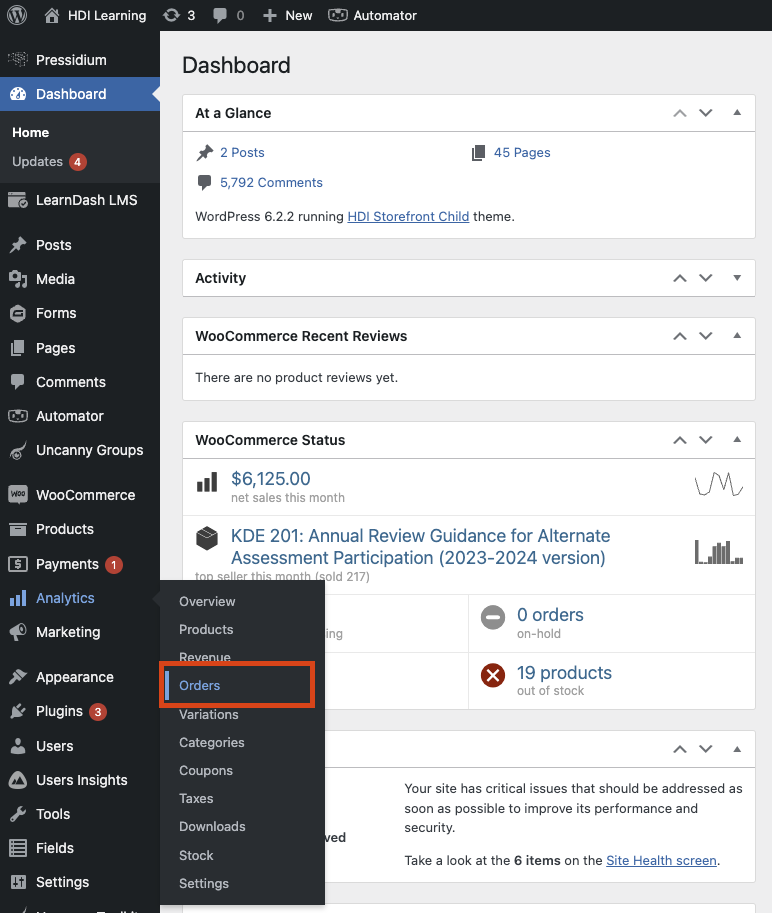
- Login to the learning management system: HDI Learning
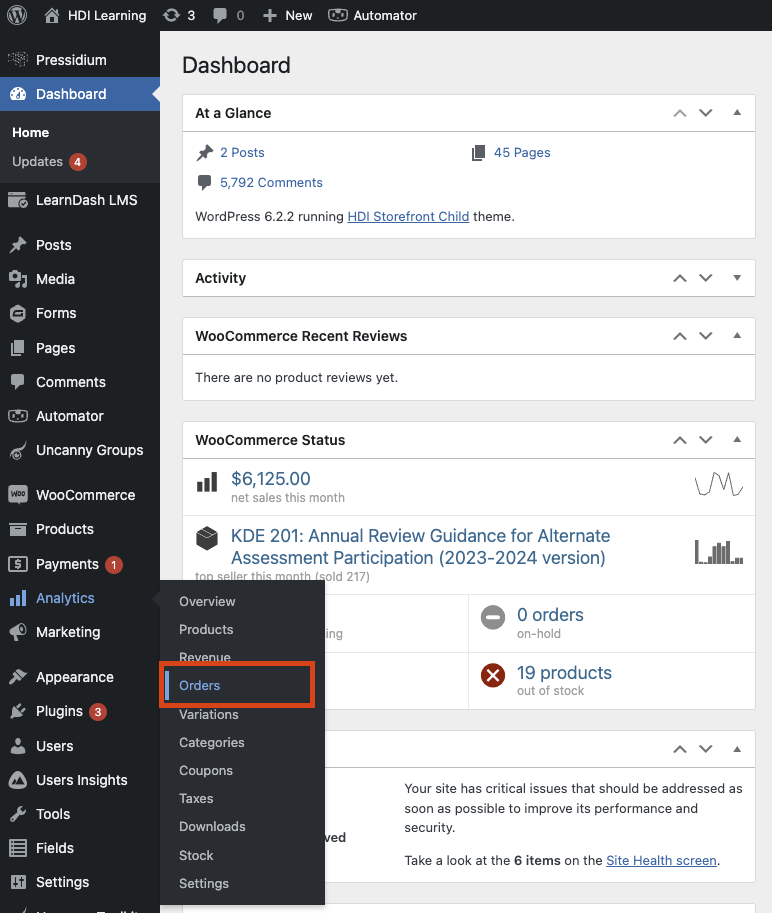
- From the administrative dashboard, hover over the "Analytics" tab from the left-hand menu.
- From the sub-menu that appears, select "Orders."
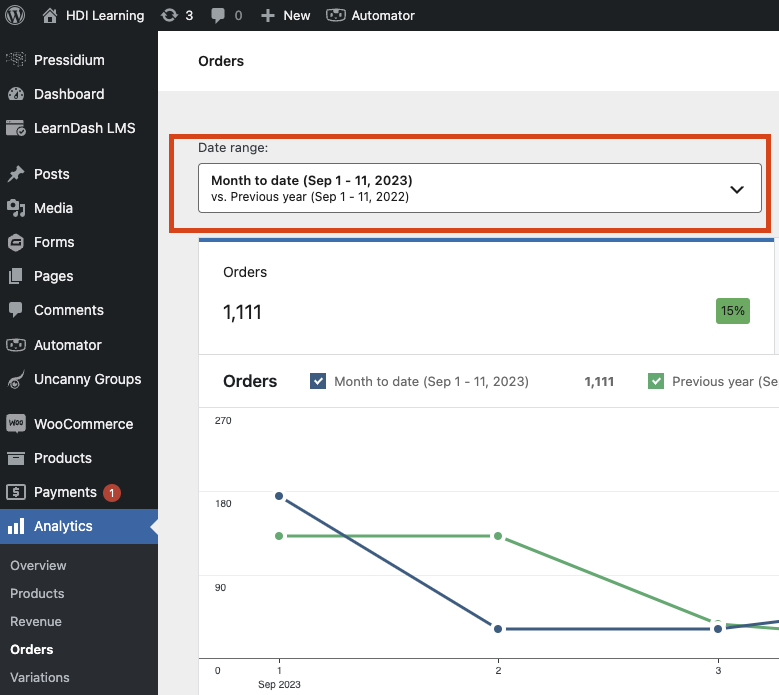
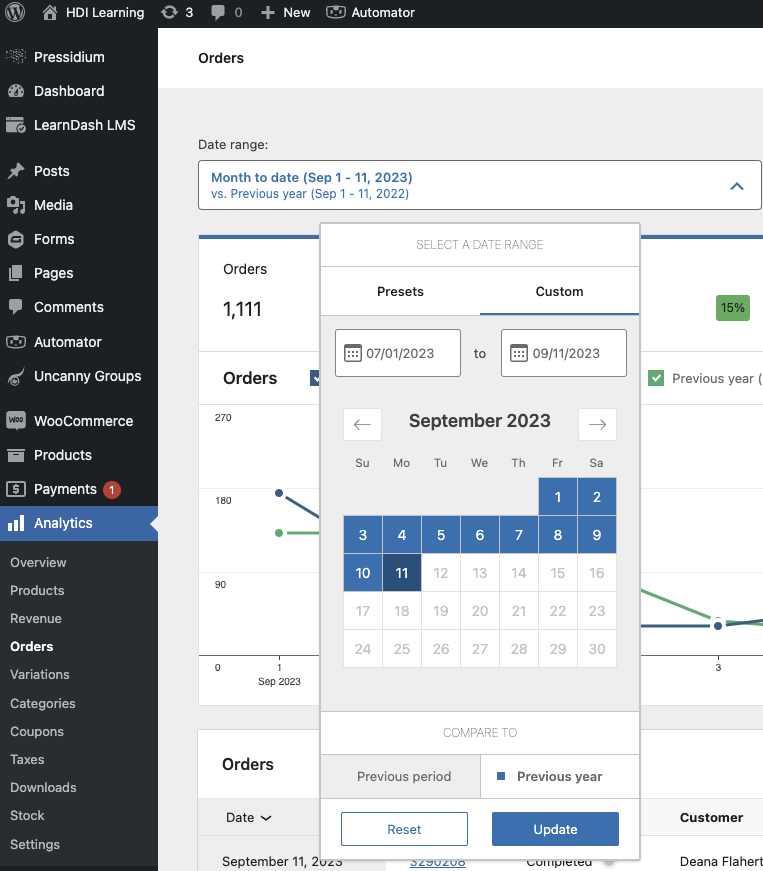
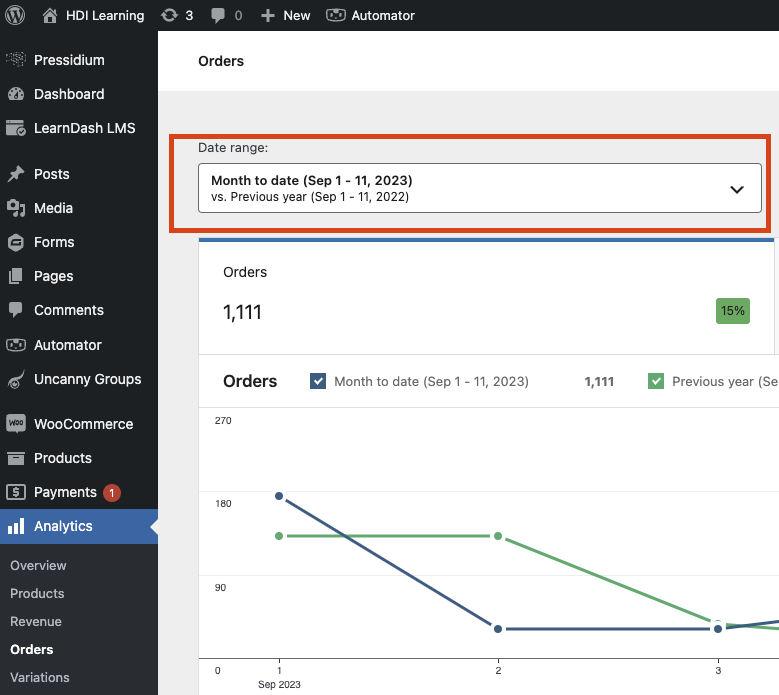
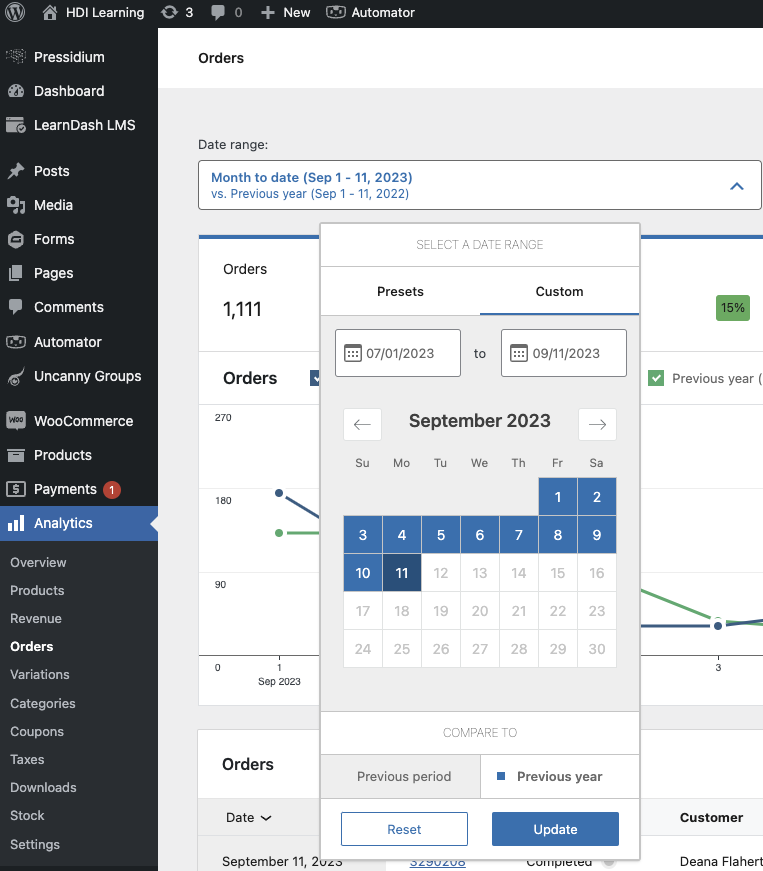
- Select the "Date Range" drop-down.
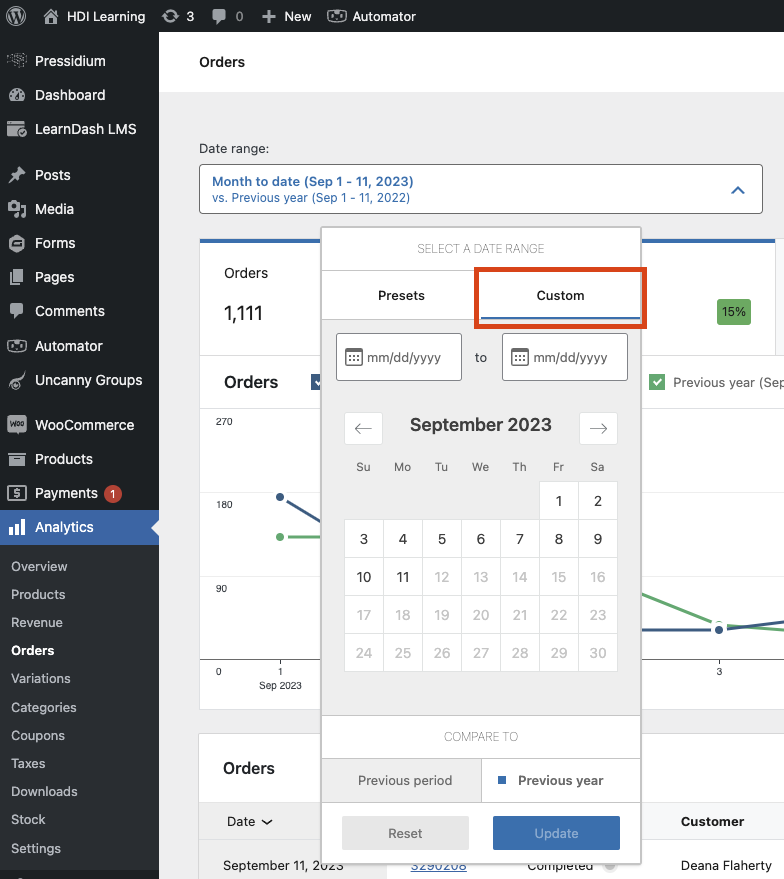
- Select the "Custom" tab.

- Select the start date and end date of the date range you would like a report for.
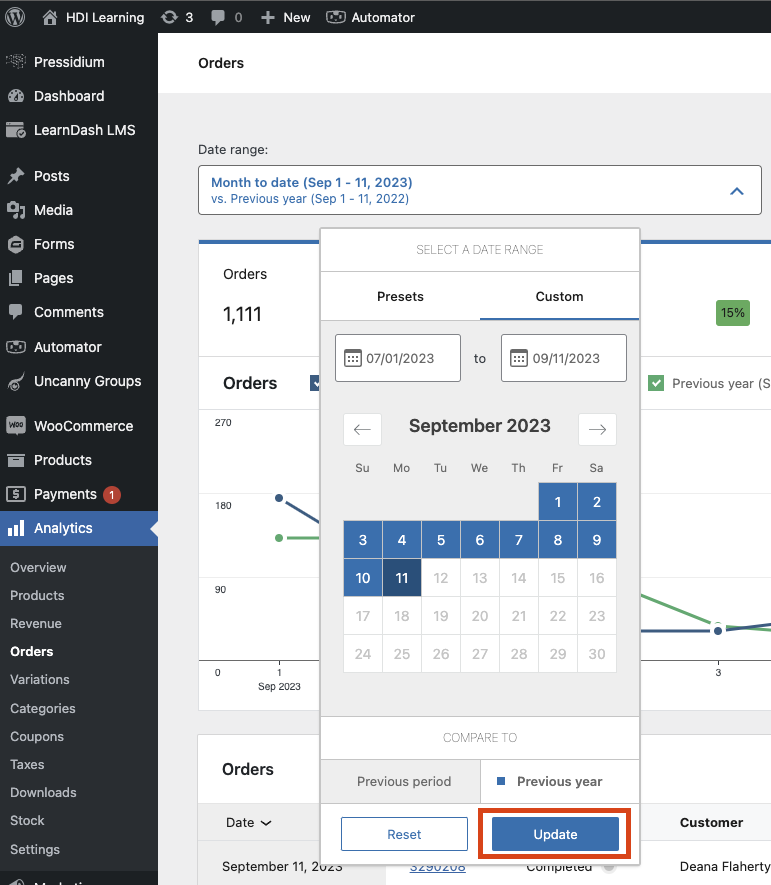
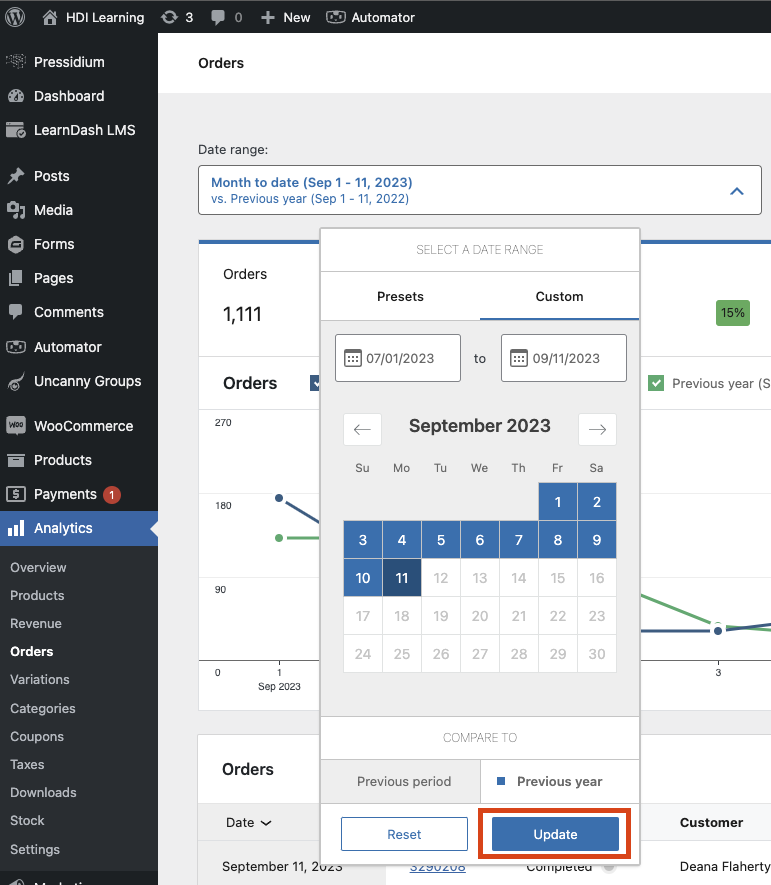
- Press the "Update" button to apply the date filter.
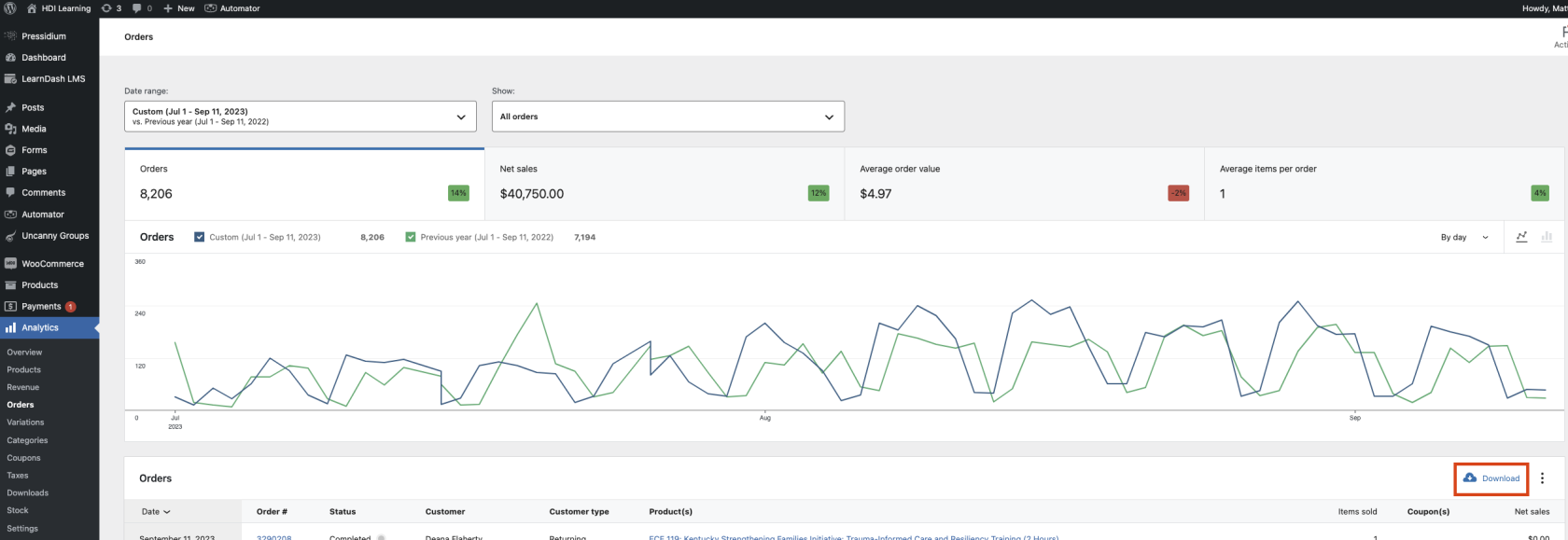
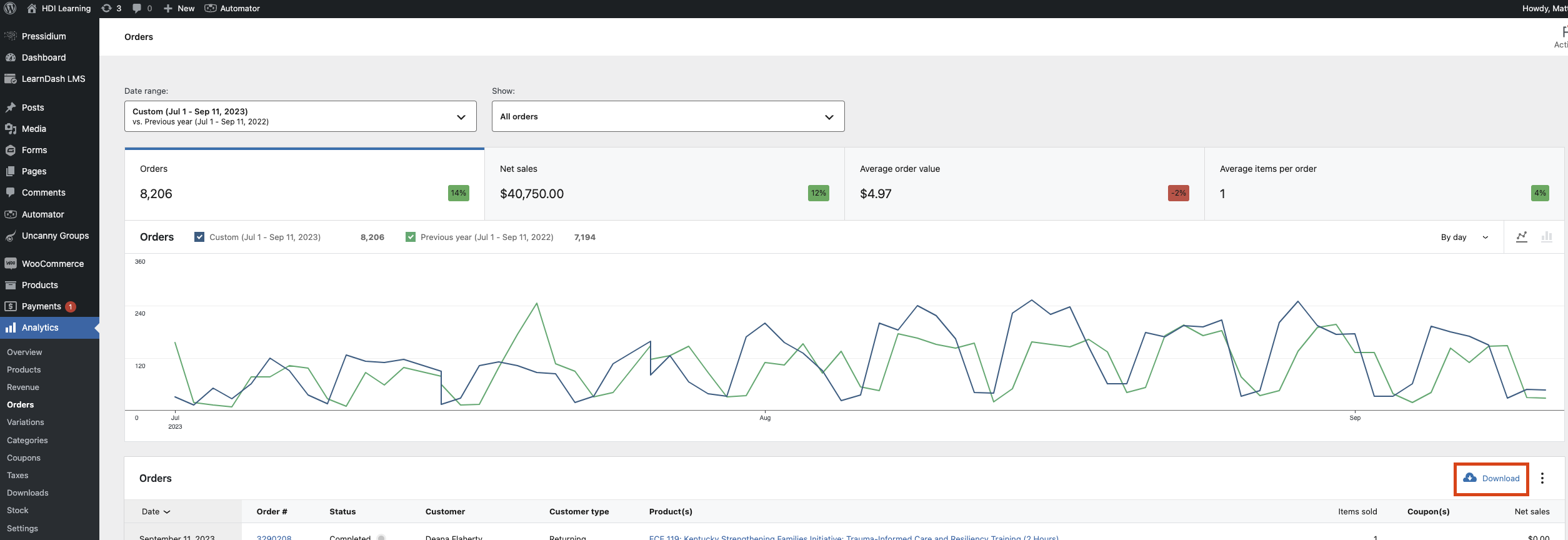
- Select the "Download" button from the far right of the screen.
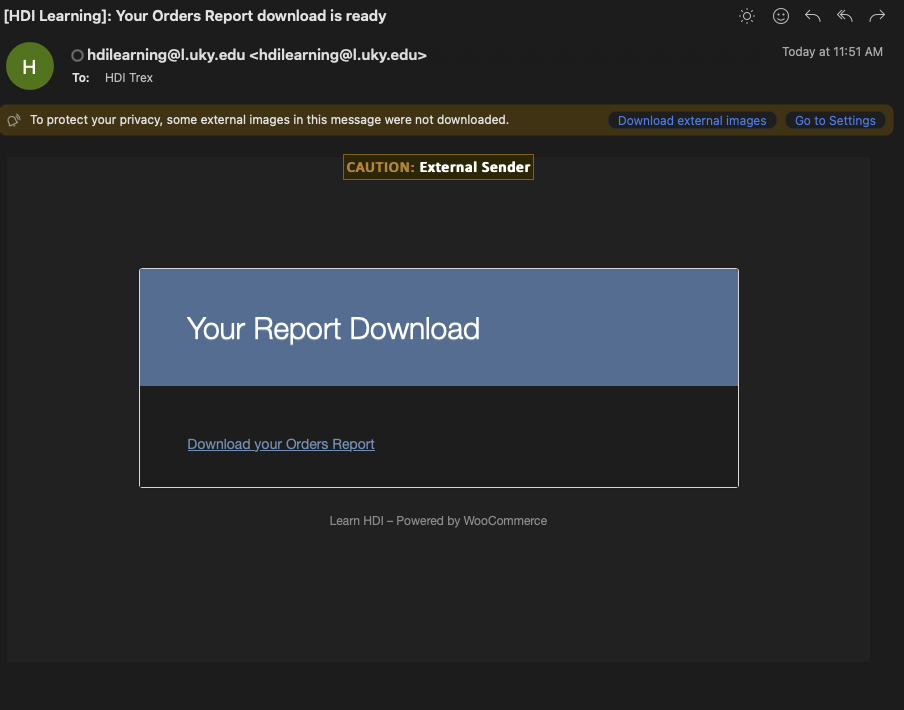
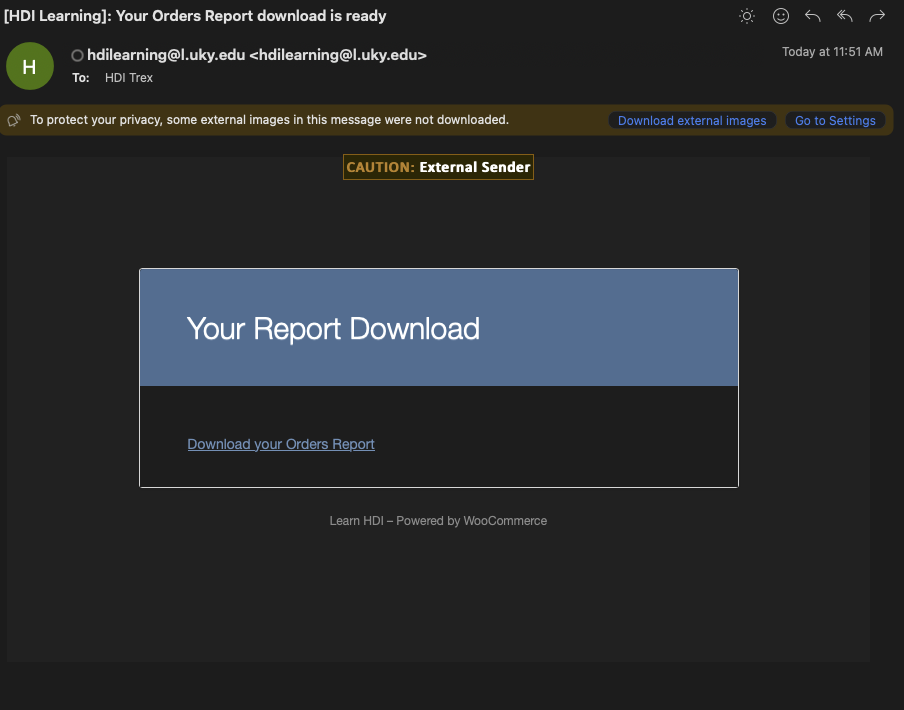
- The site will then send a report via email once it has been generated completed.
- Click the "Download your Orders Report" link in the email received.
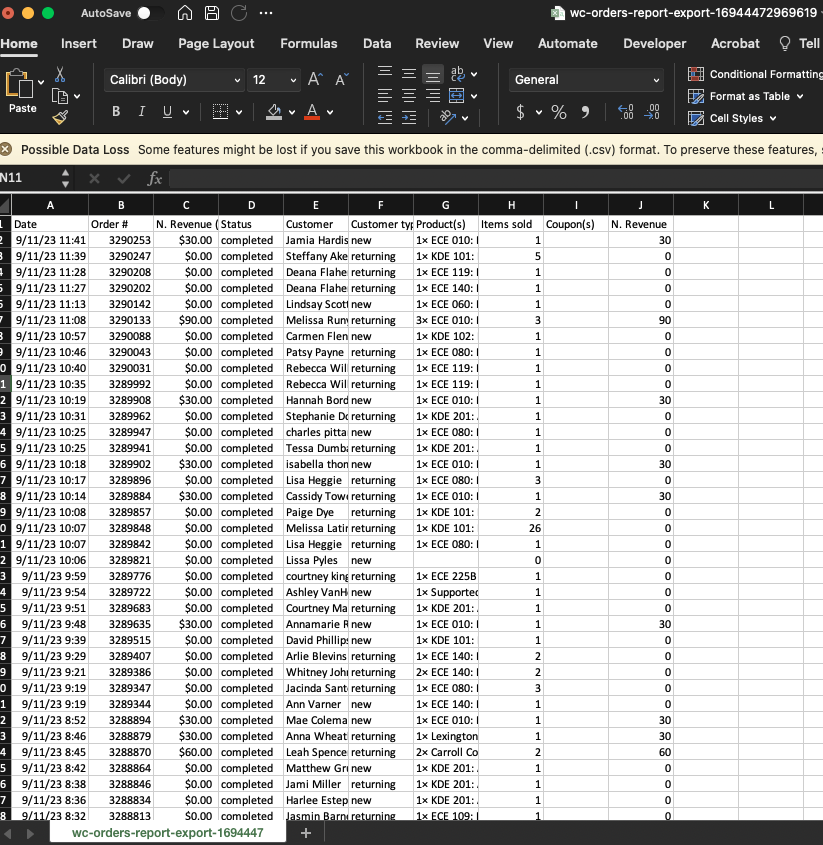
- Open the downloaded CSV file with Microsoft Excel.
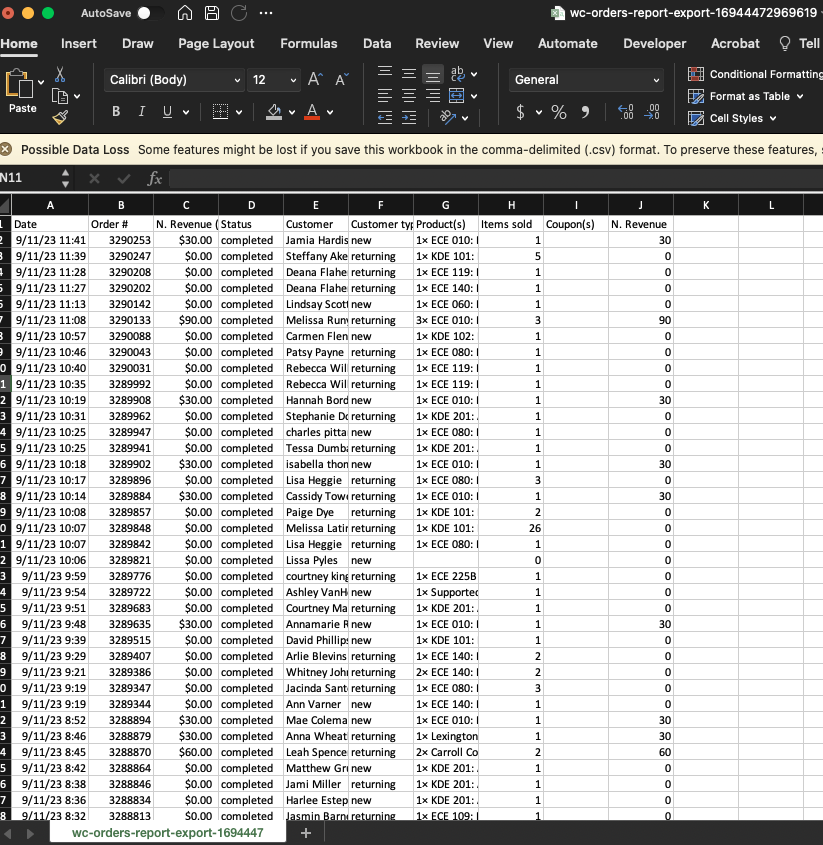
Generate the Report
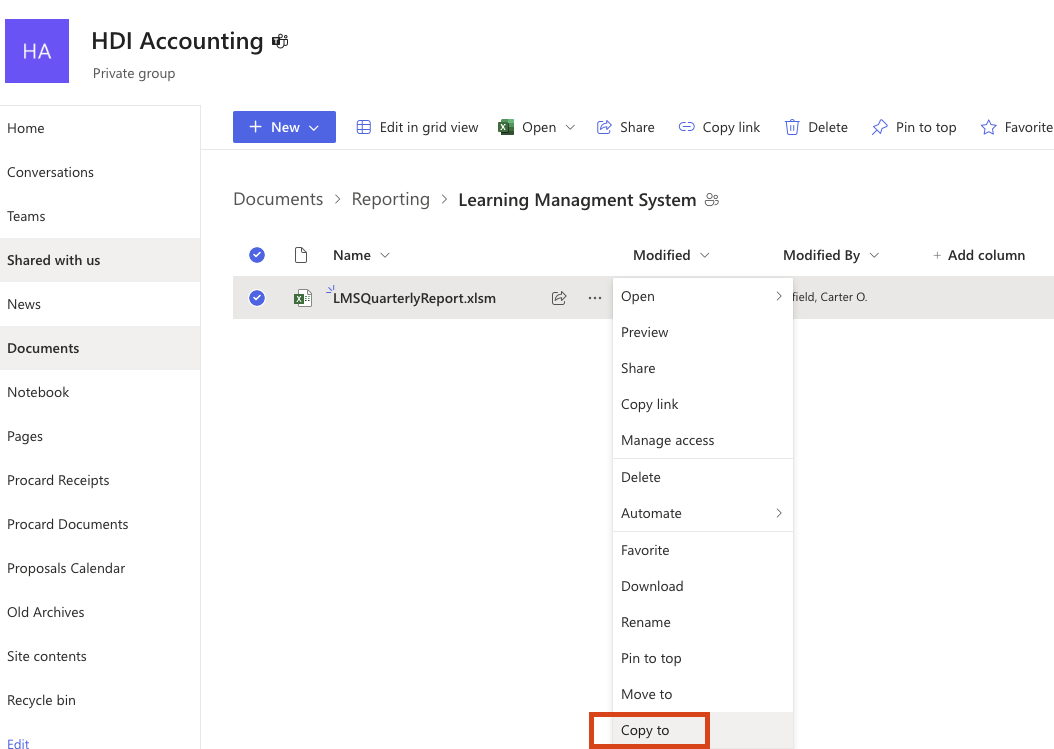
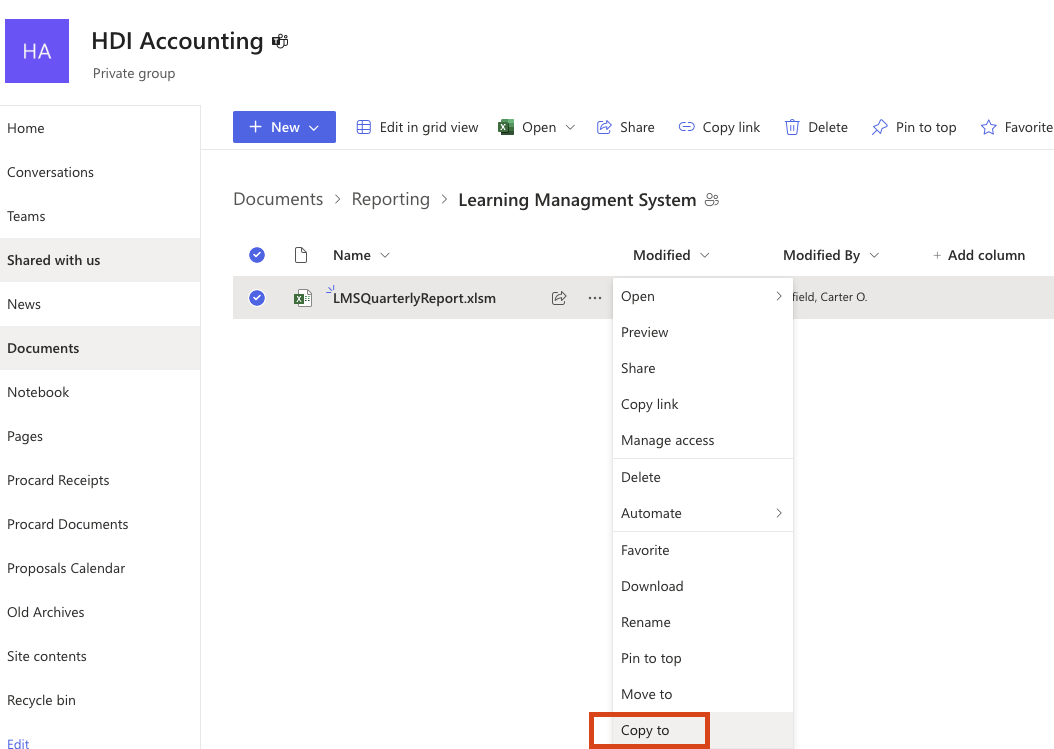
- Make a copy of the LMS Quarterly Report: Learning Managment System
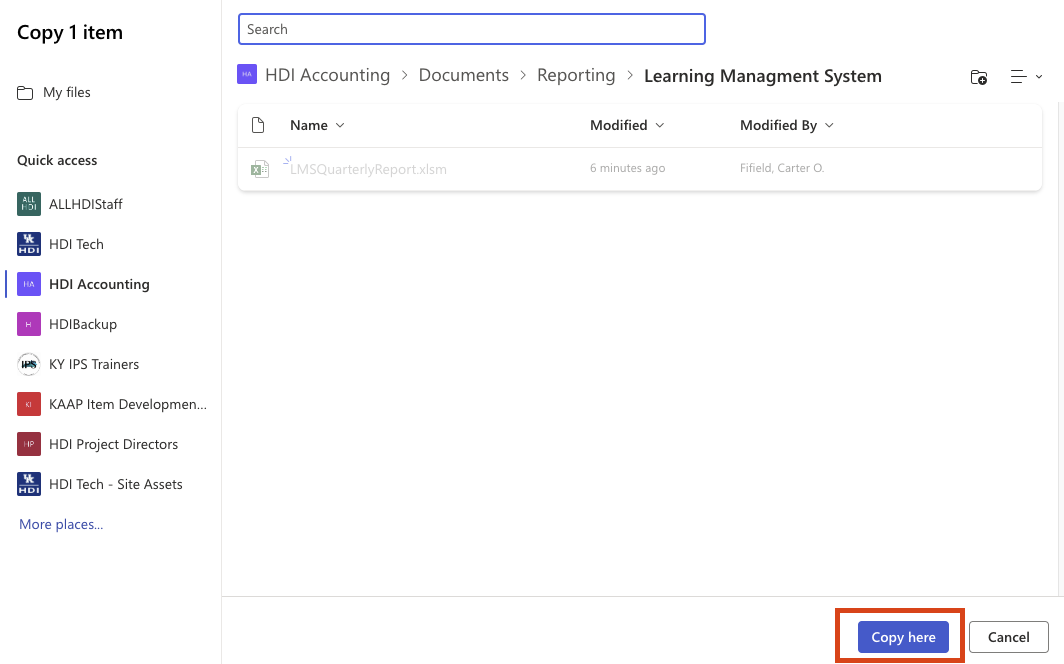
- Select the "Copy here" button to copy the report template.
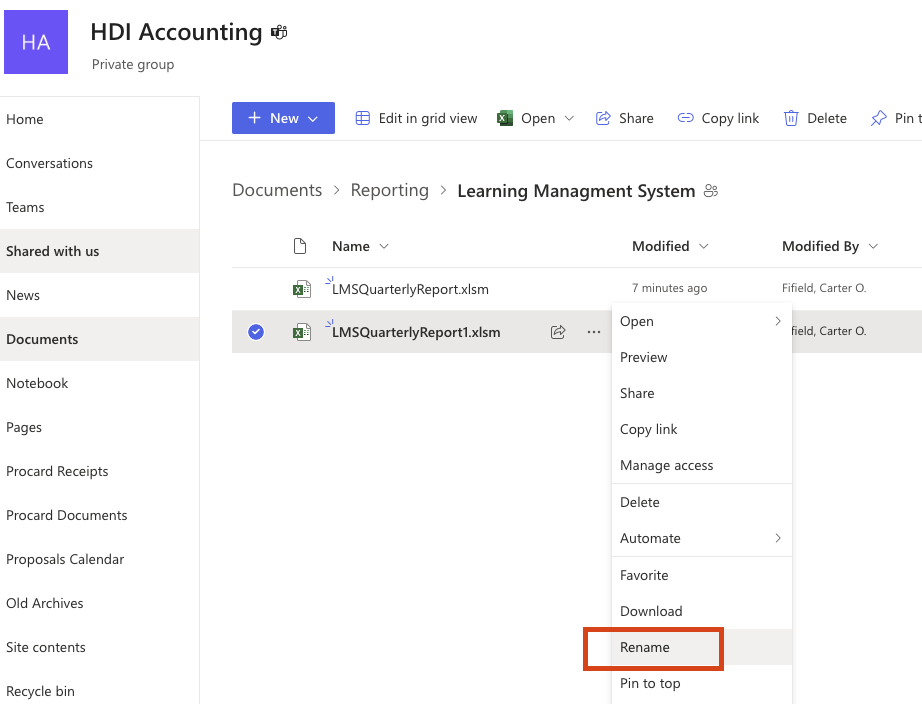
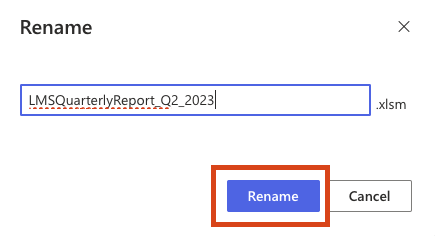
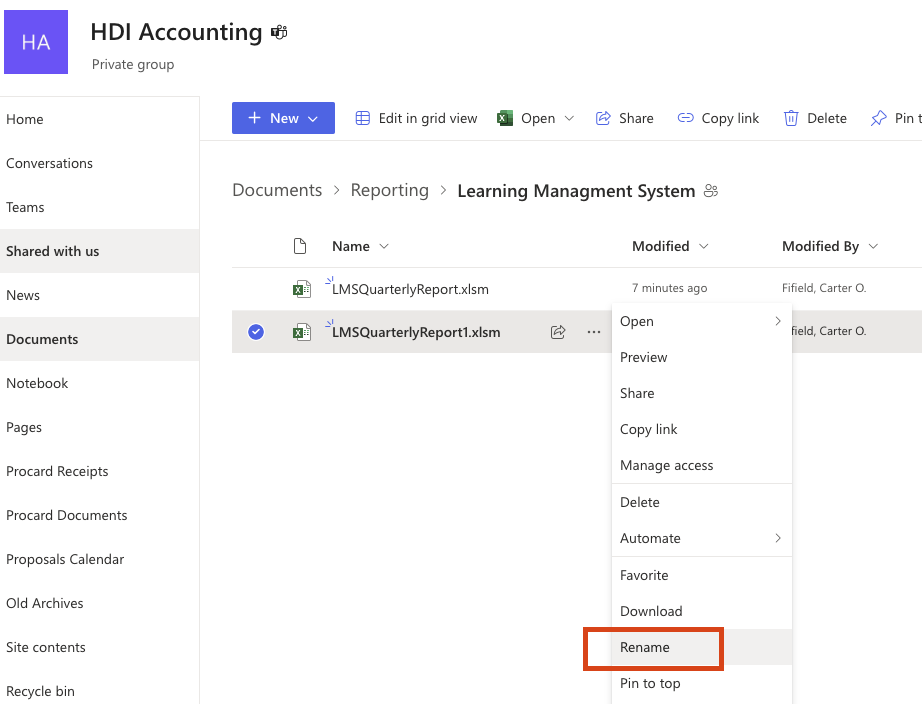
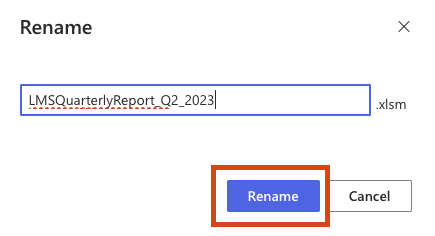
- Rename the copied file to the current quarter you are generating a report for.
For example: "LMSQuarterlyReport_Q2_2023.xIsm"
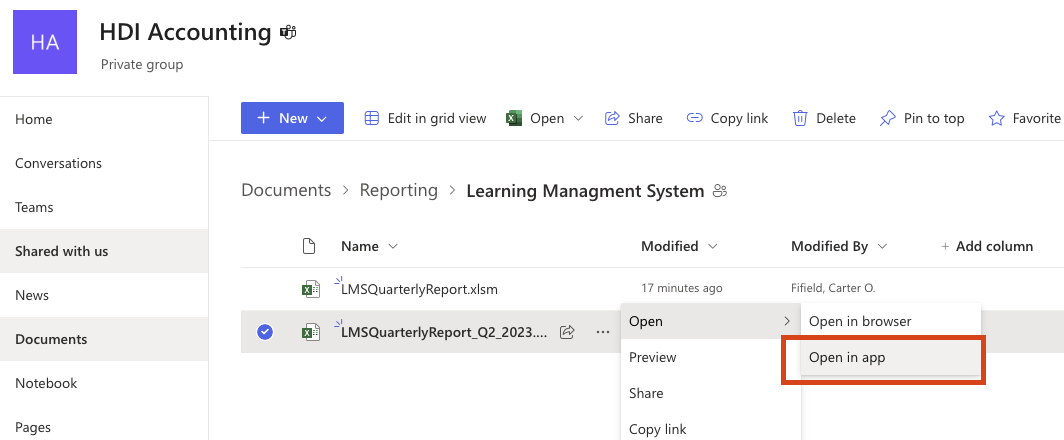
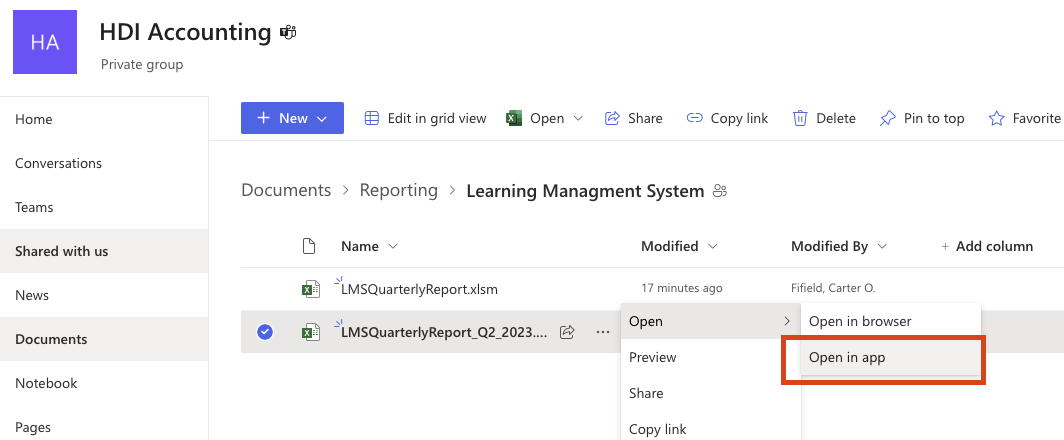
- Open the file in the desktop Microsoft Excel application.
-
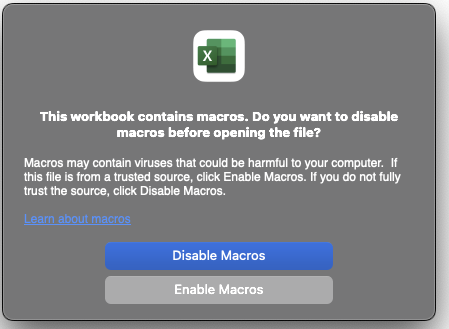
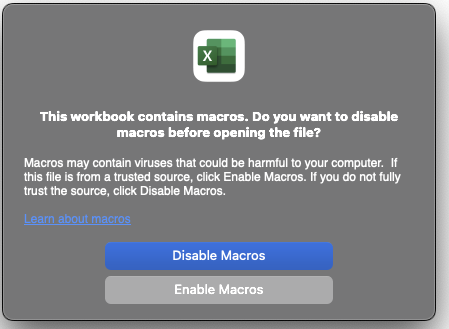
If presented with a warning, please click "Enable Macros."
-
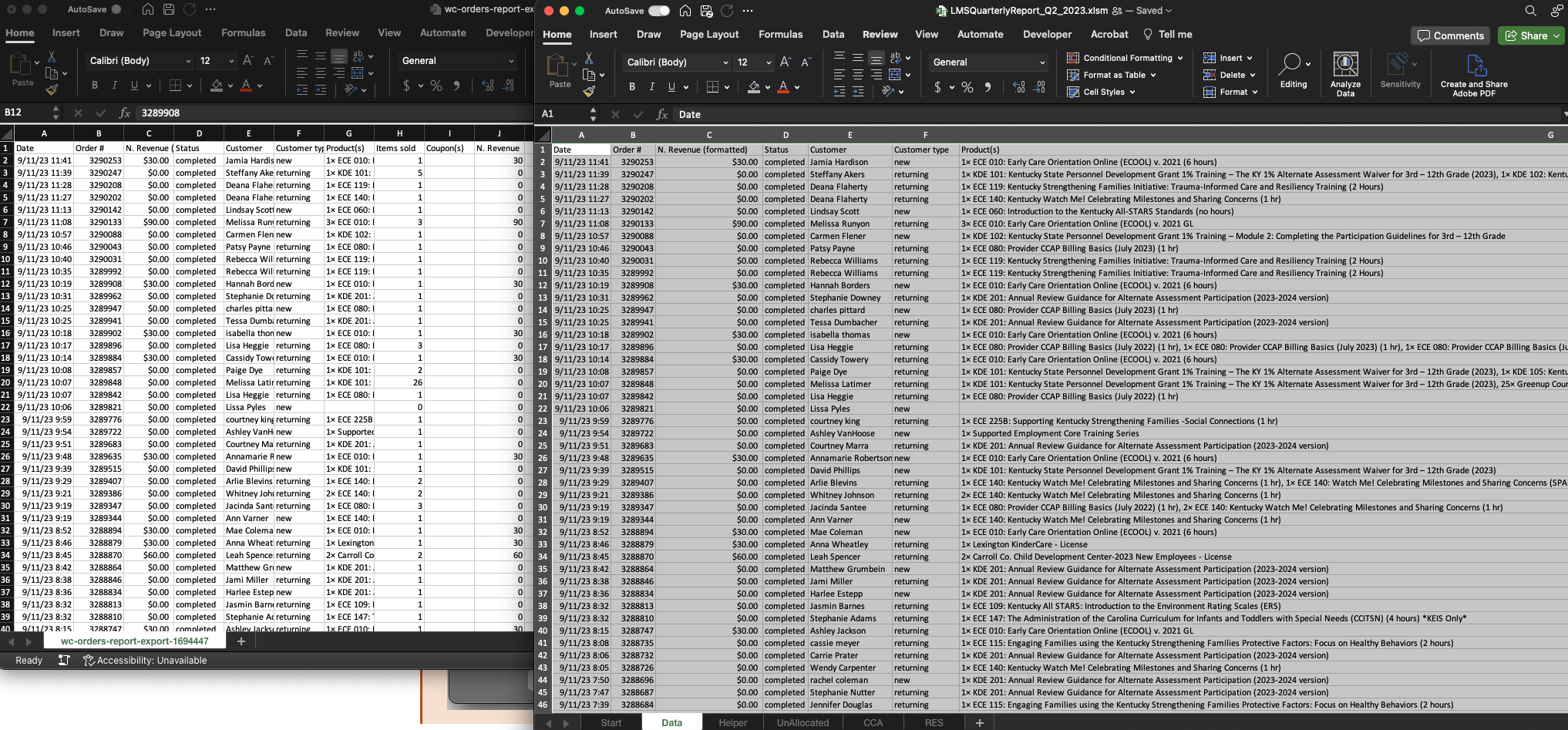
- Copy the report data (from the report file you downloaded earlier) to the "Data" sheet of your newly created quarterly report.
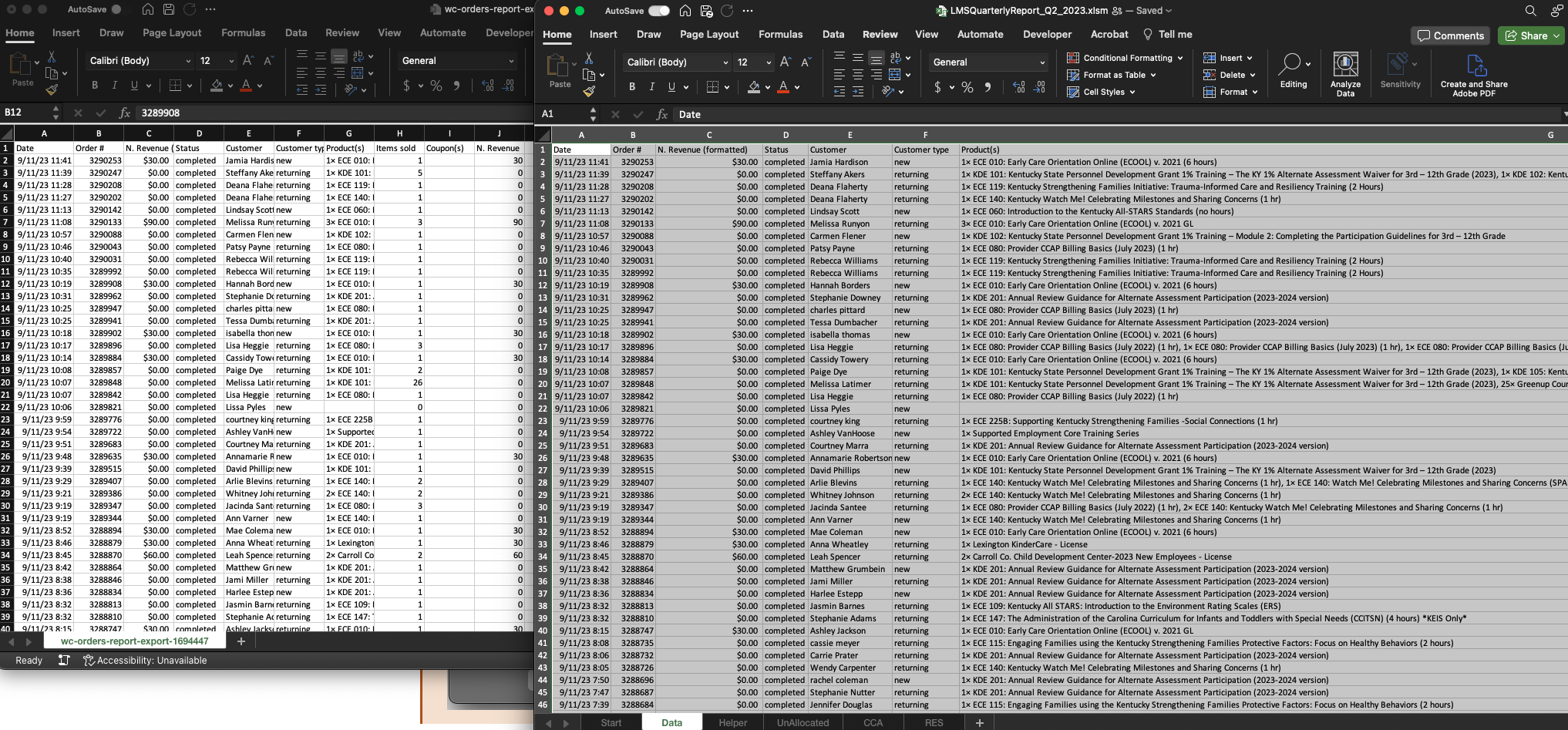
You can easily accomplish this by pressing CTRL + A to select all of the data from the downloaded report. Then, use CTRL + C to copy the data; and CTRL + V to paste the data on the quarterly report "Data" sheet.