How to Create a Quarterly Transaction Report
Download Source Data
- Login to the learning management system: HDI Learning
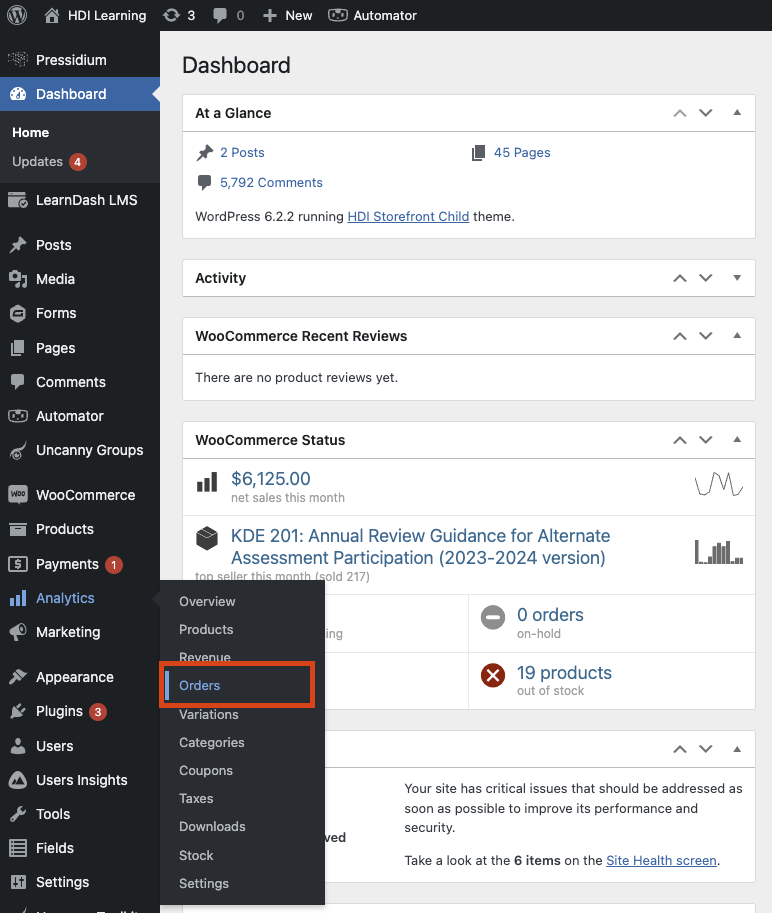
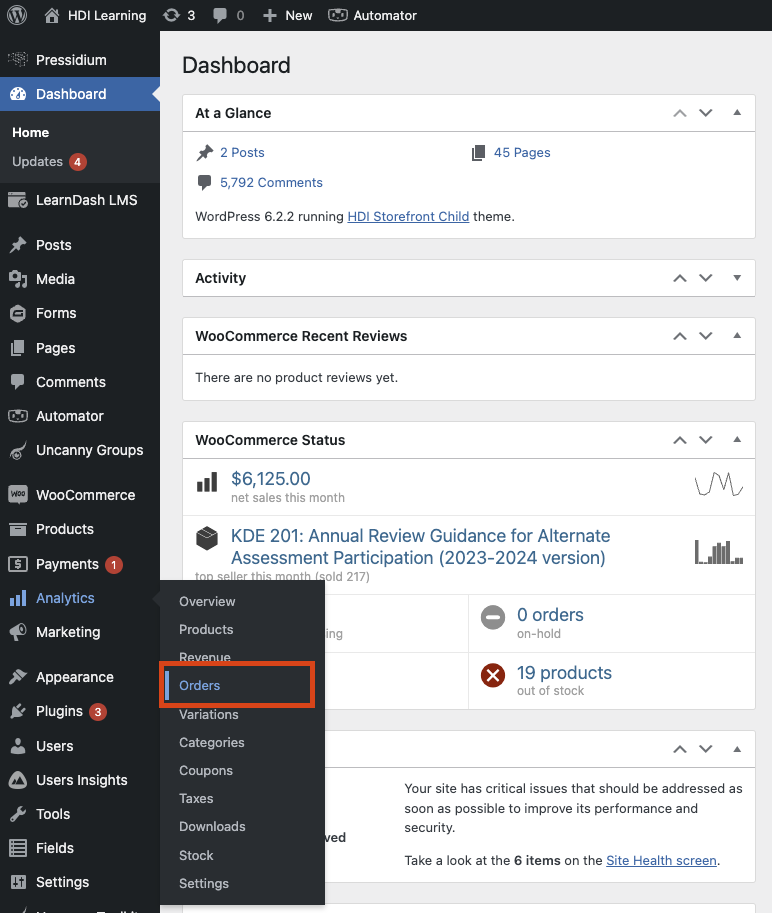
- From the administrative dashboard, hover over the "Analytics" tab from the left-hand menu.
- From the sub-menu that appears, select "Orders."
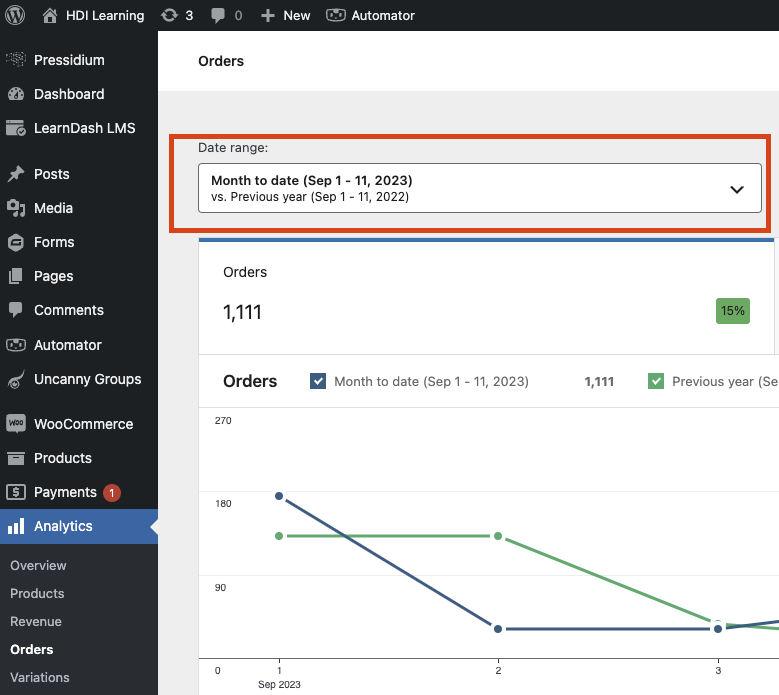
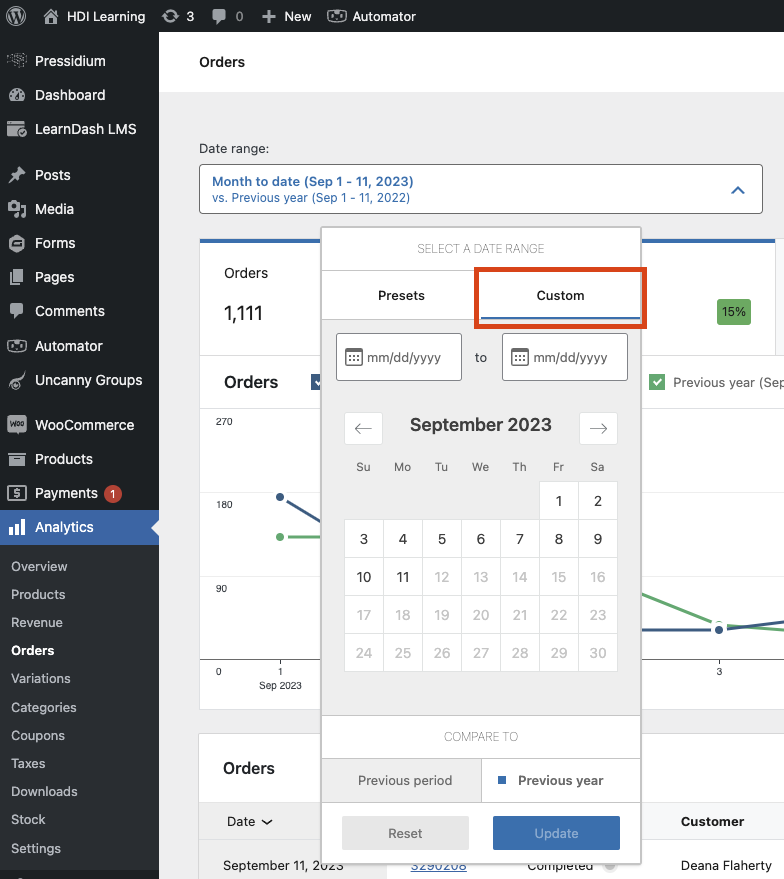
- Select the "Date Range" drop-down.
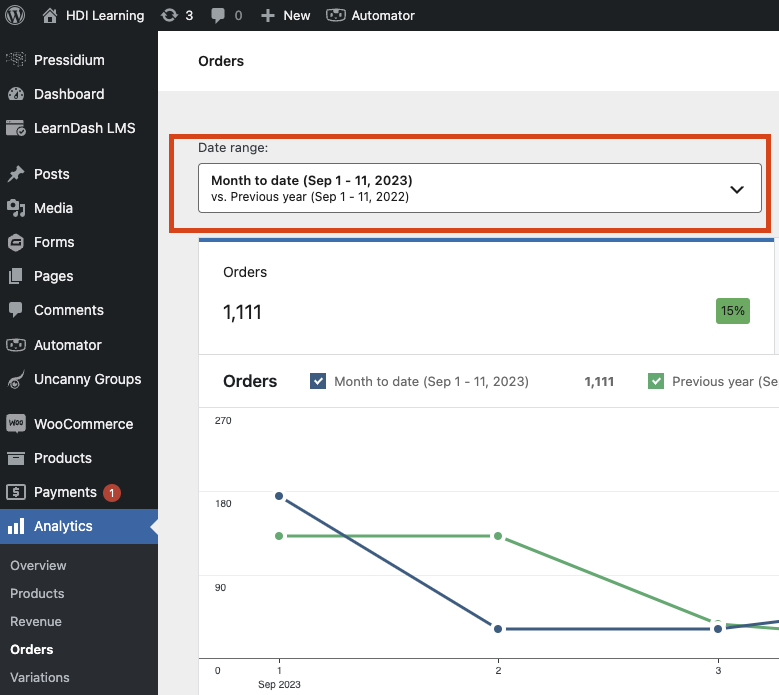
- Select the "Custom" tab.

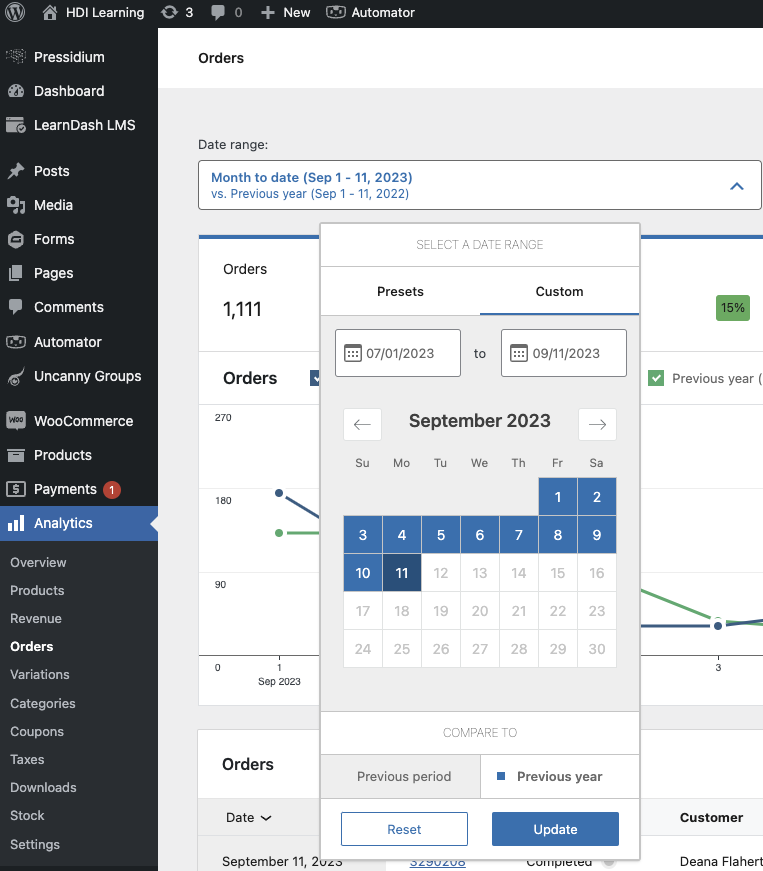
- Select the start date and end date of the date range you would like a report for.
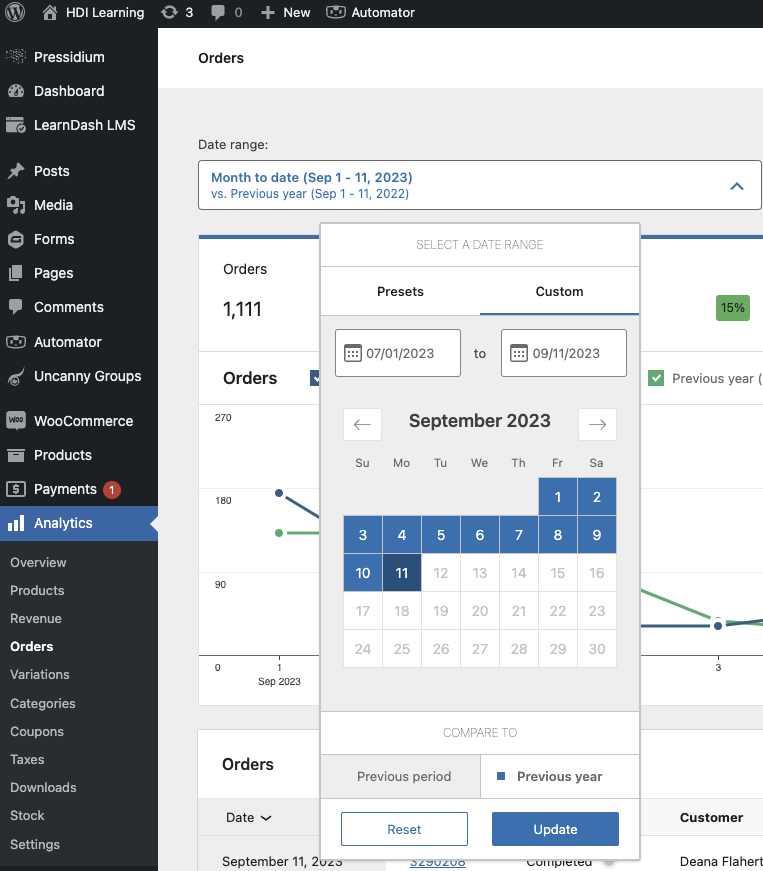
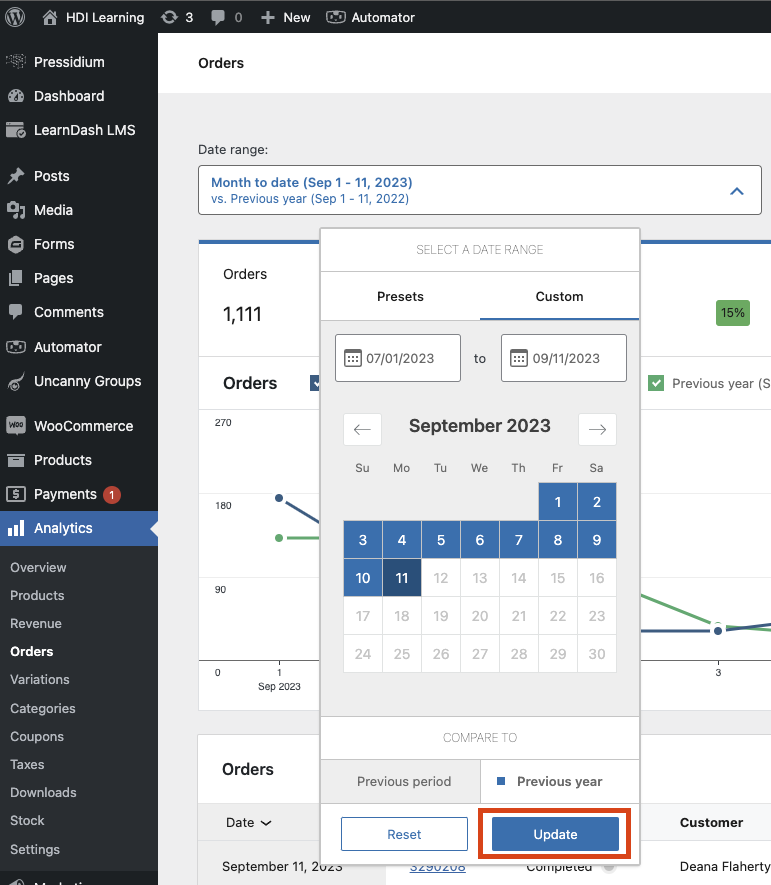
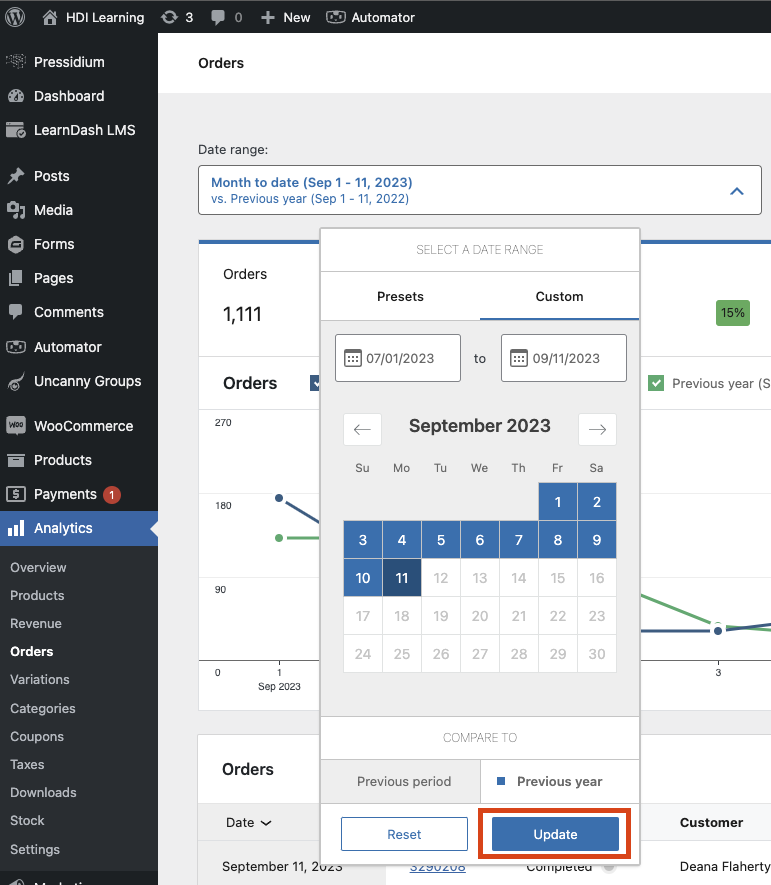
- Press the "Update" button to apply the date filter.
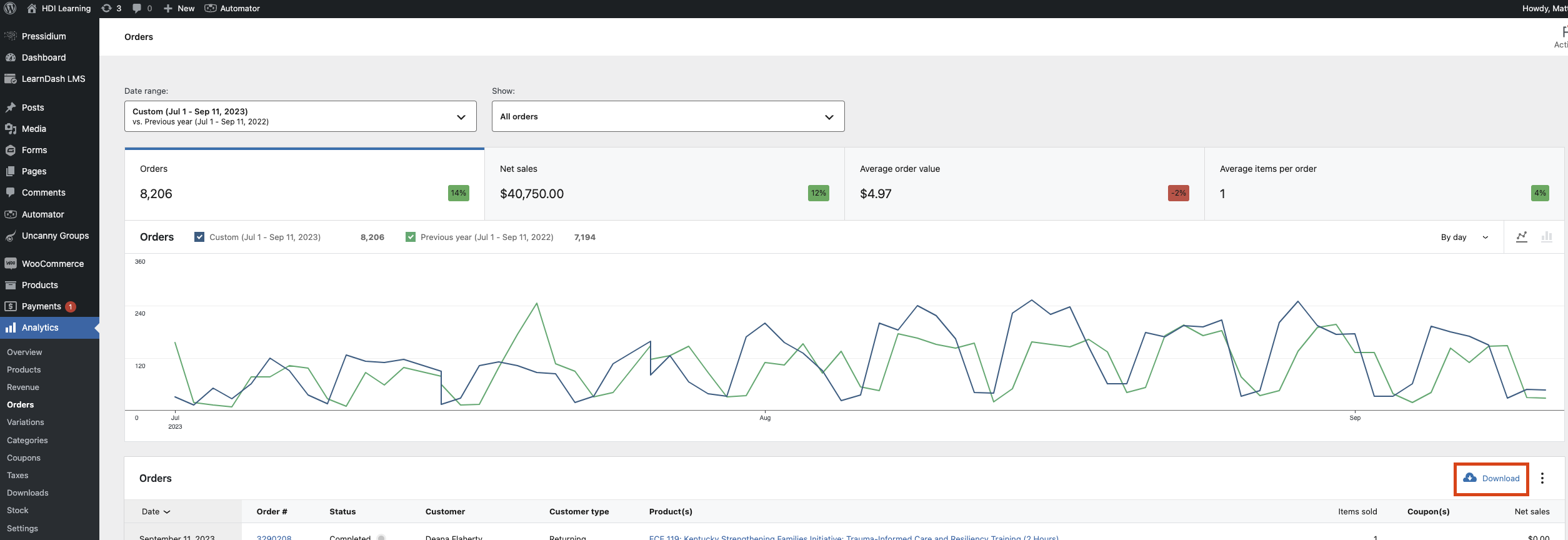
- Select the "Download" button from the far right of the screen.
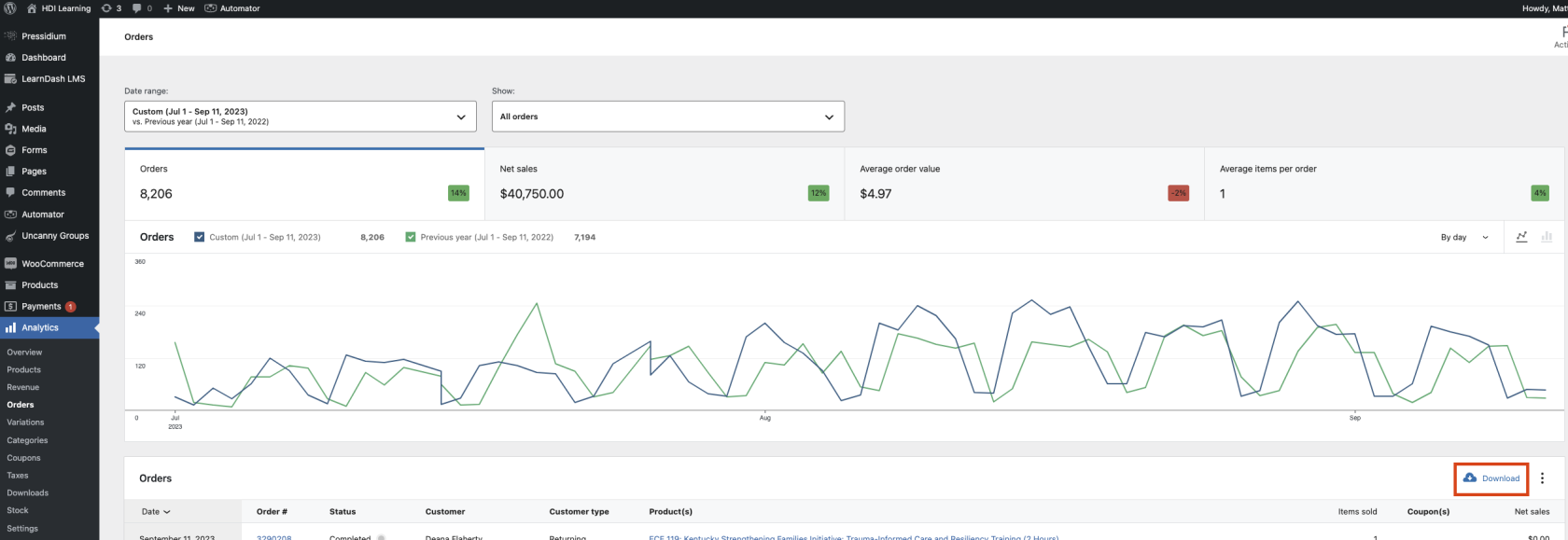
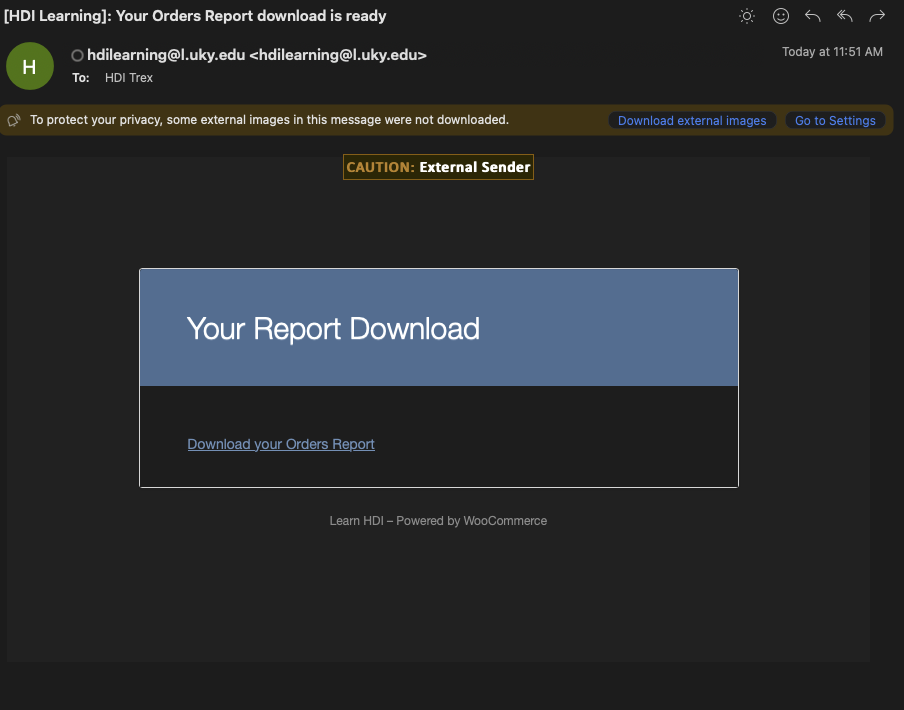
- The site will then send a report via email once it has been generated completed.
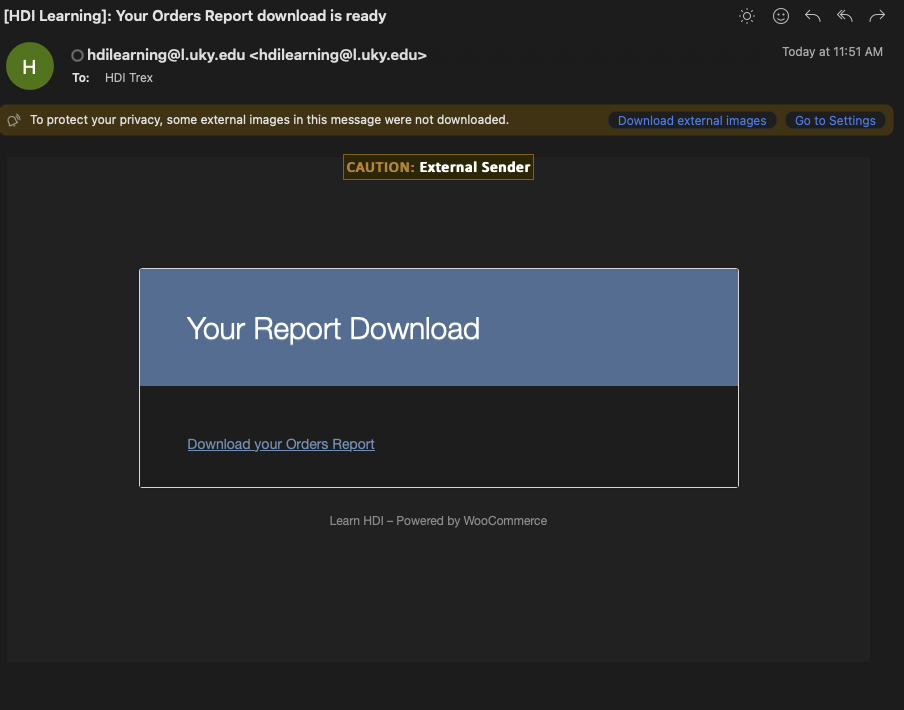
- Click the "Download your Orders Report" link in the email received.
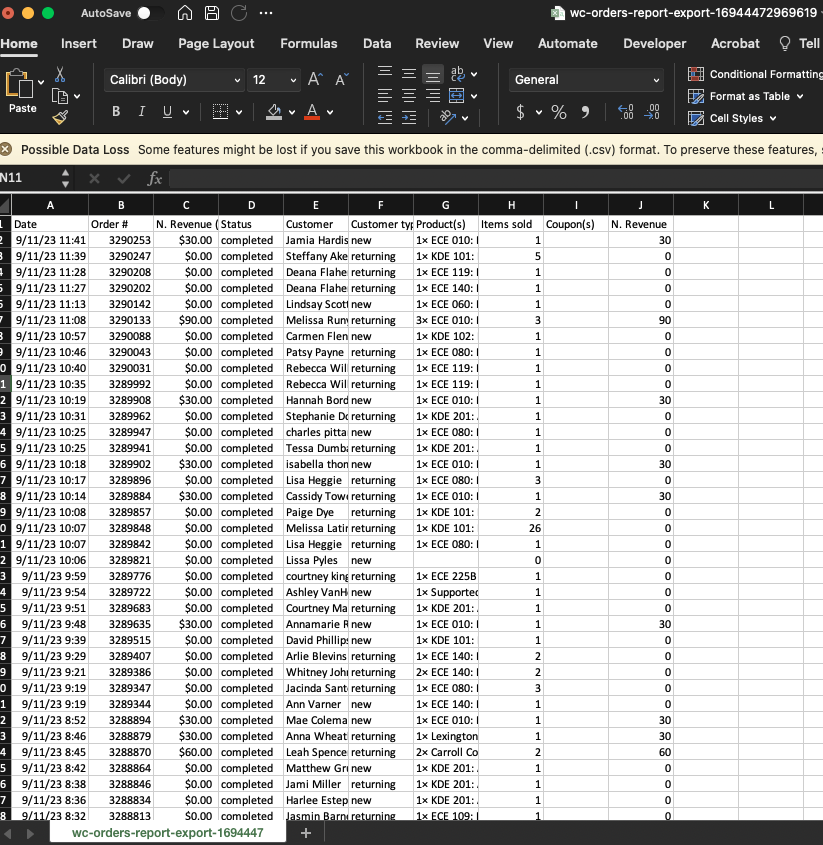
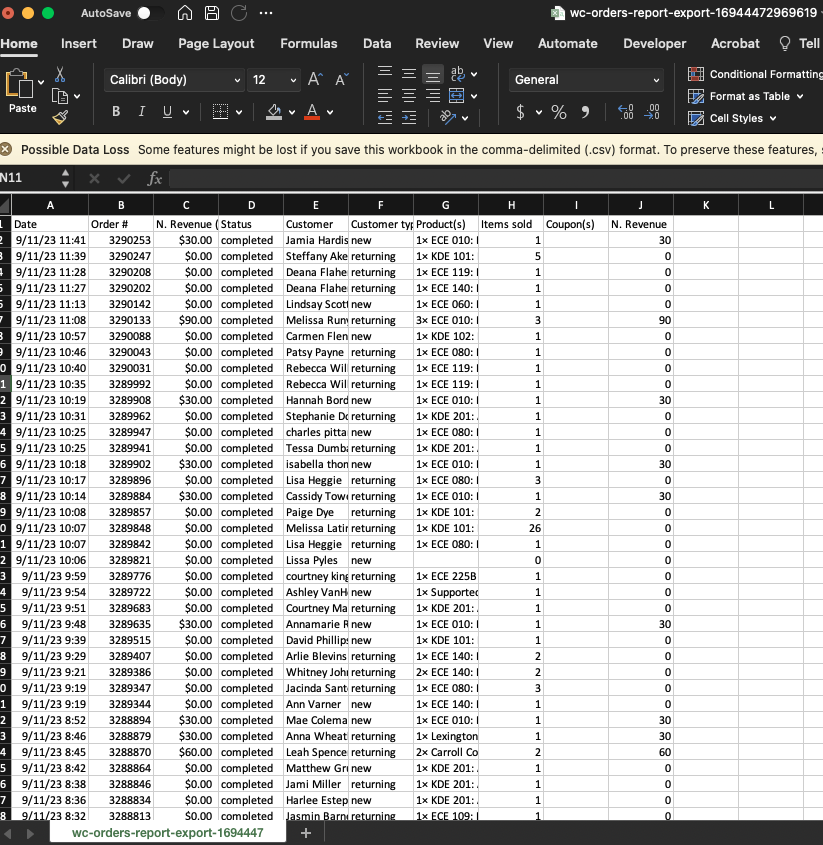
- Open the downloaded CSV file with Microsoft Excel.
Generate the Report
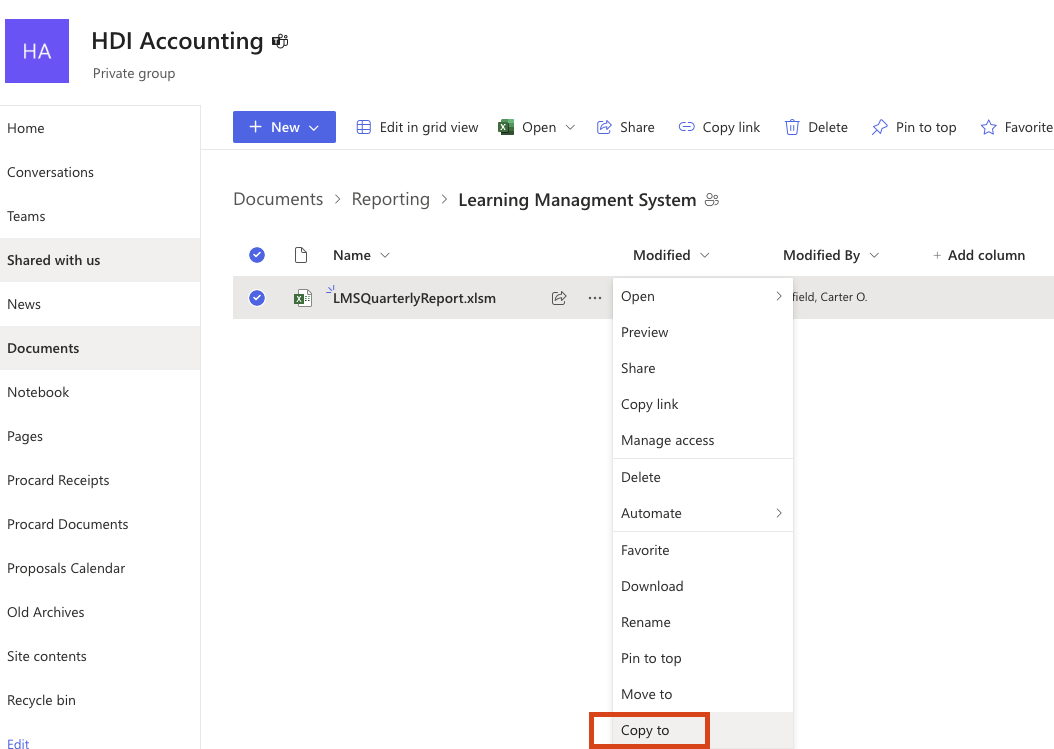
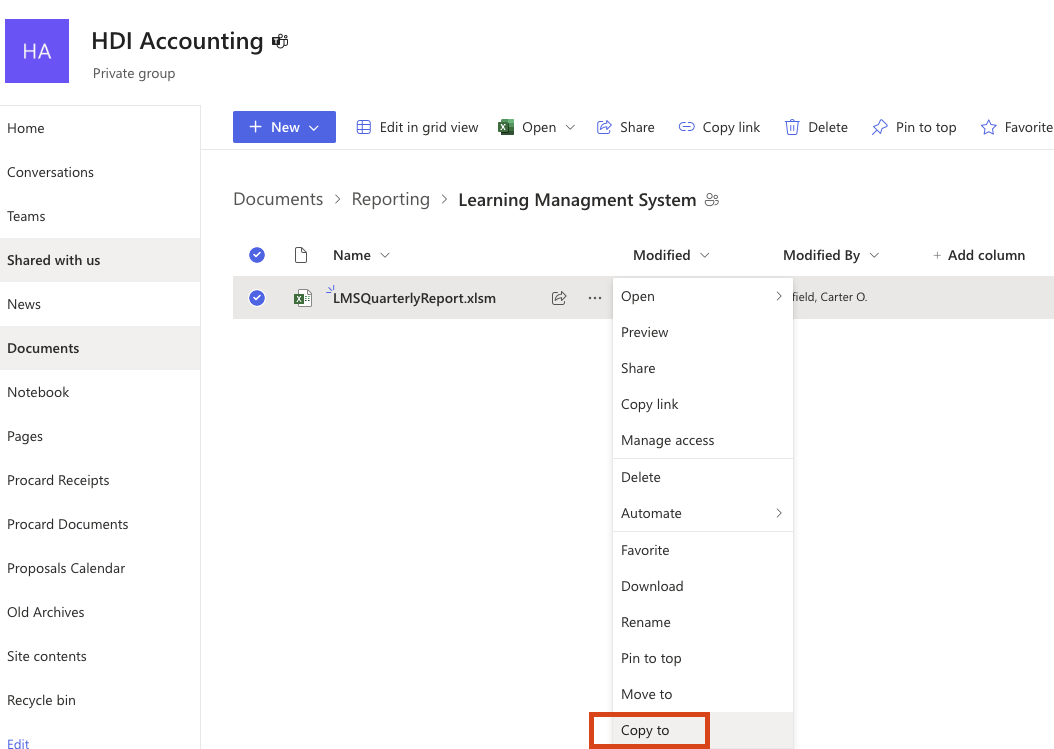
- Make a copy of the LMS Quarterly Report: Learning Managment System
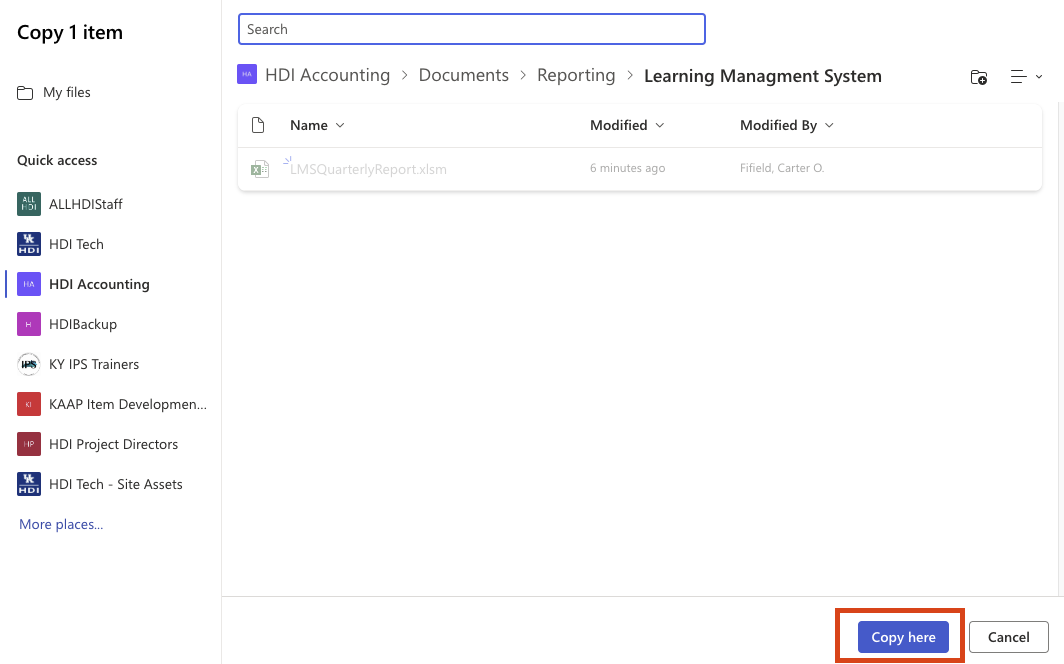
- Select the "Copy here" button to copy the report template.
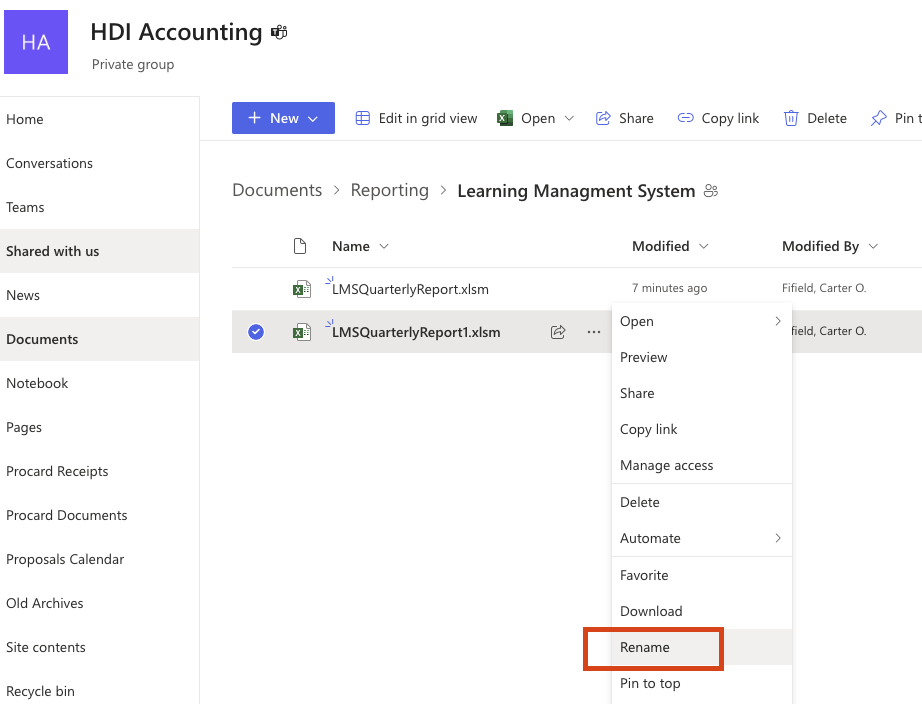
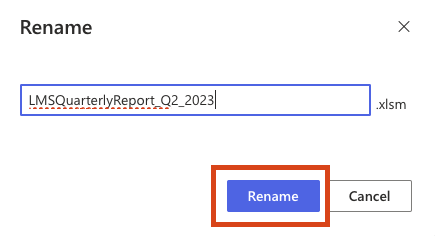
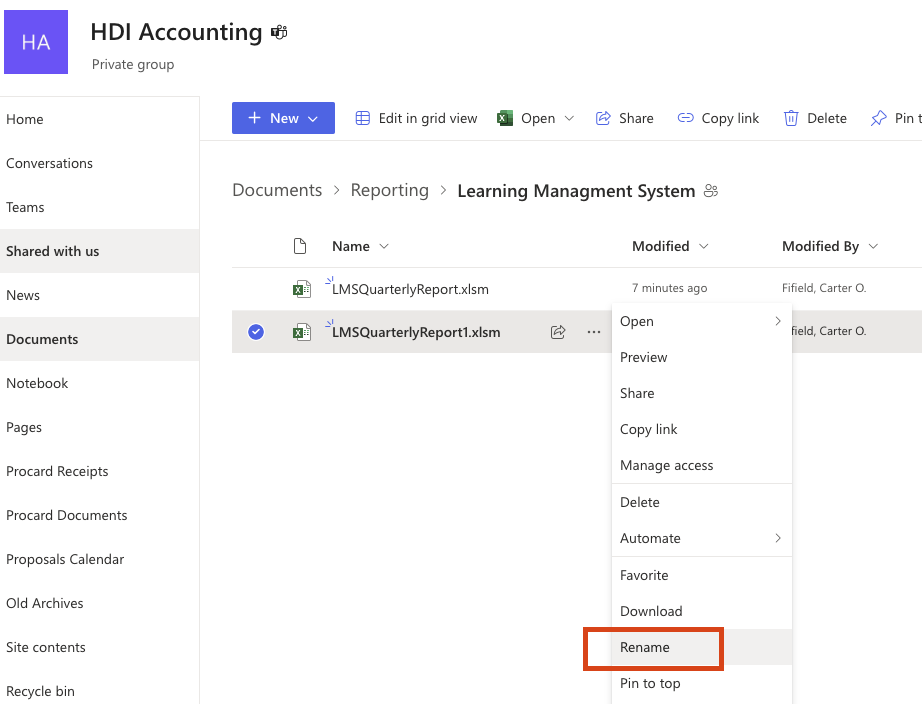
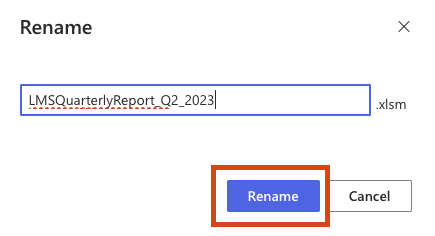
- Rename the copied file to the current quarter you are generating a report for.
For example: "LMSQuarterlyReport_Q2_2023.xIsm"
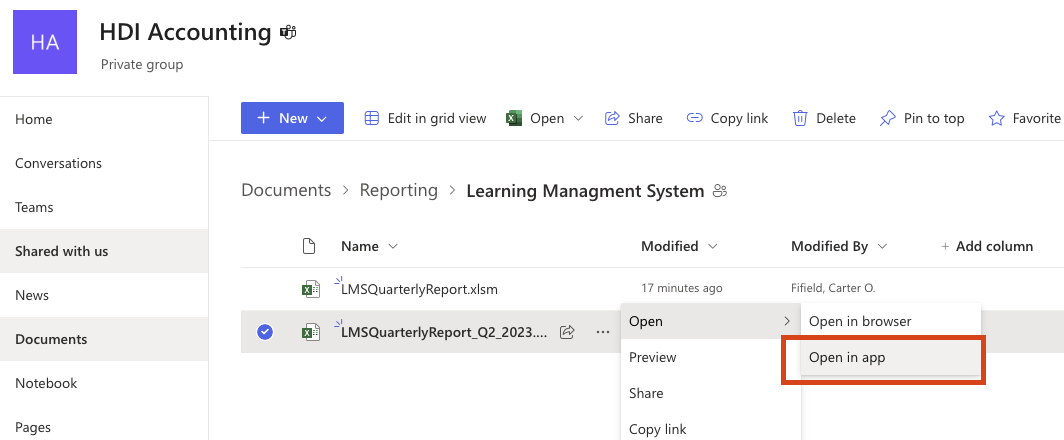
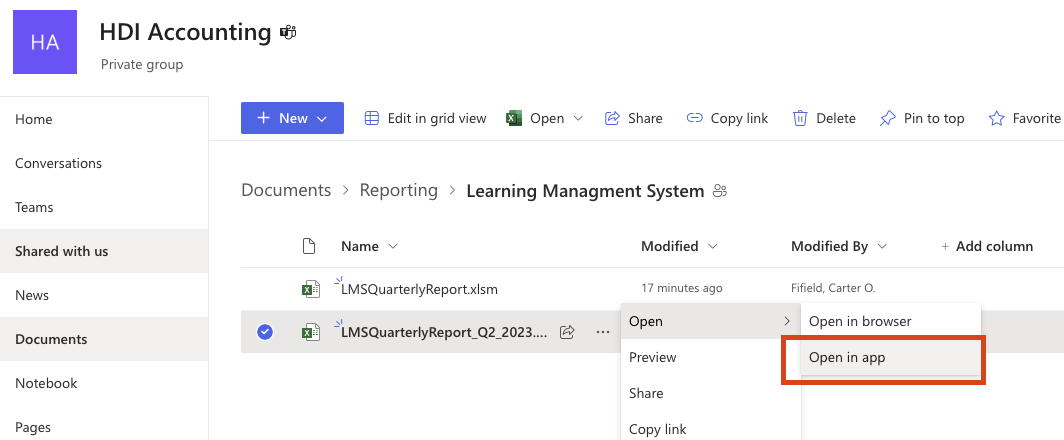
- Open the file in the desktop Microsoft Excel application.
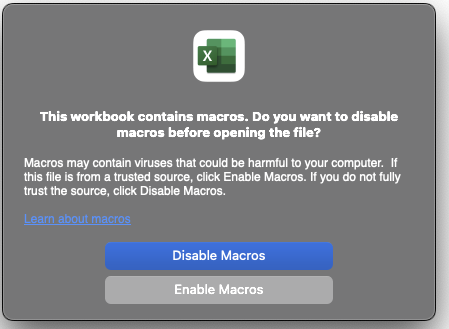
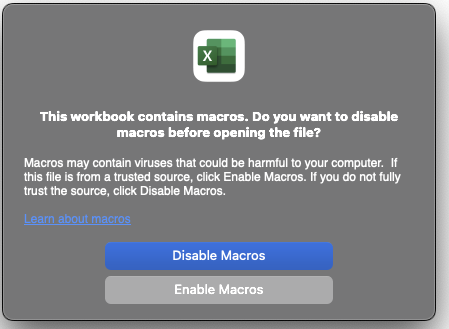
If presented with a warning, please click "Enable Macros."
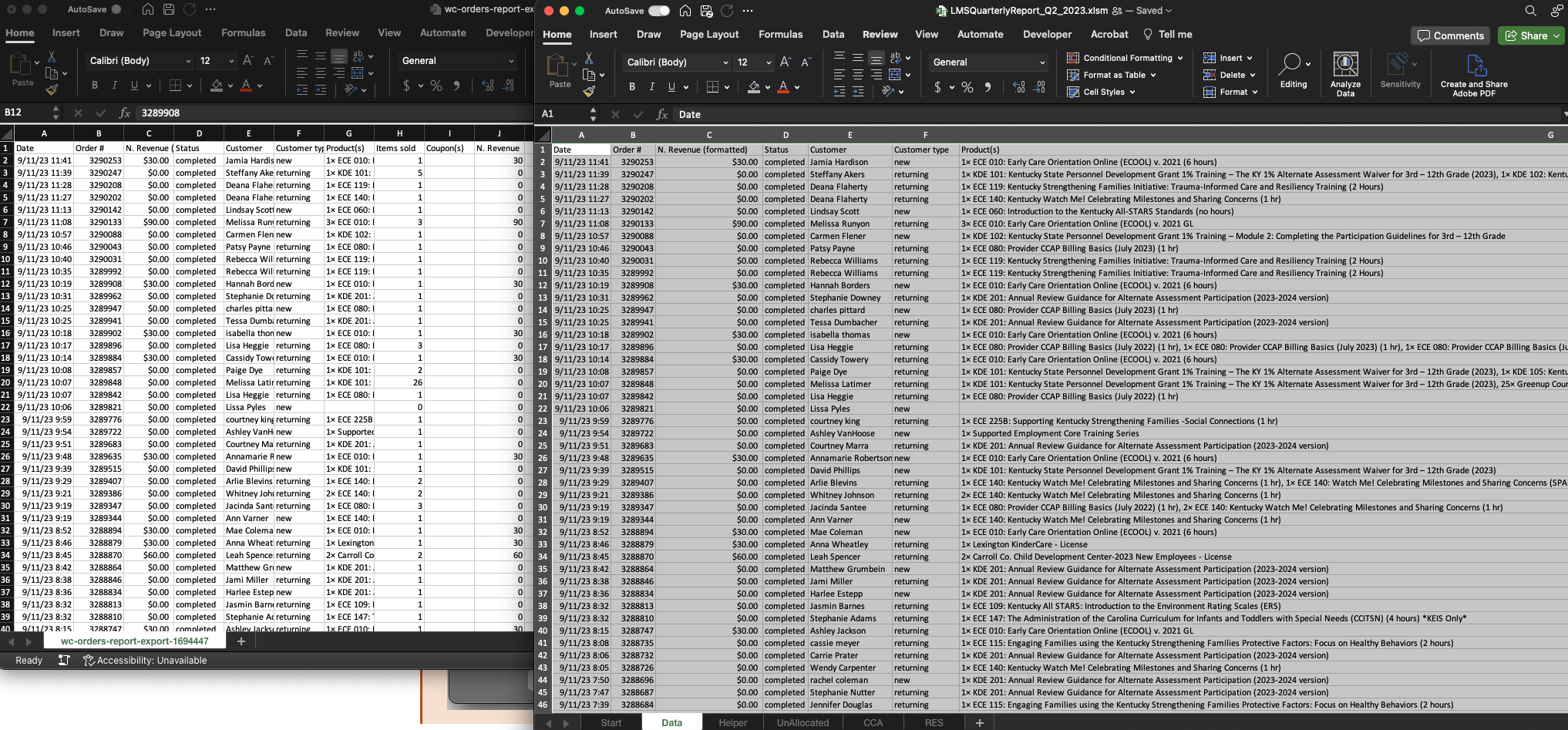
- Copy the report data (from the report file you downloaded earlier) to the "Data" sheet of your newly created quarterly report.
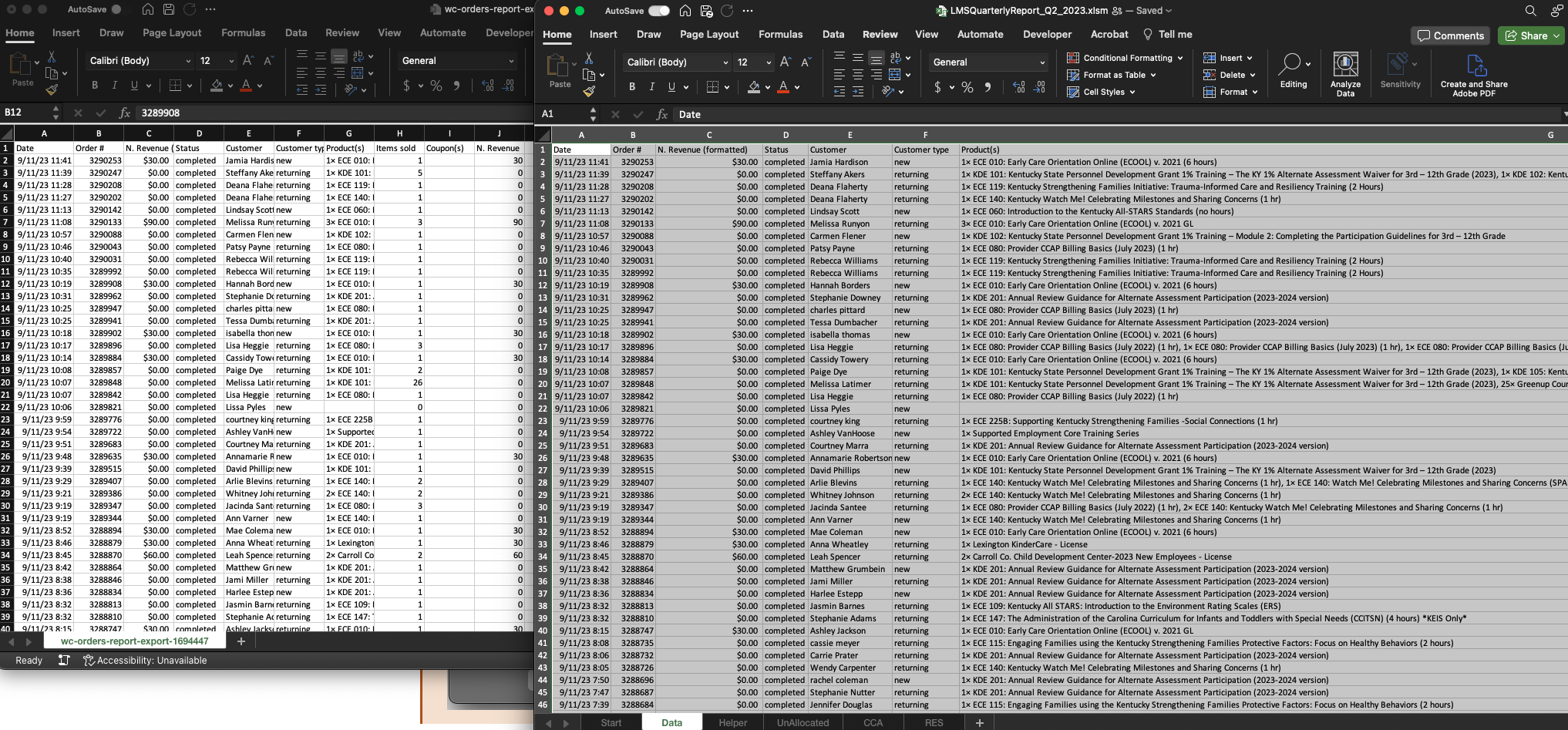
You can easily accomplish this by pressing CTRL + A to select all of the data from the downloaded report. Then, use CTRL + C to copy the data; and CTRL + V to paste the data on the quarterly report "Data" sheet.
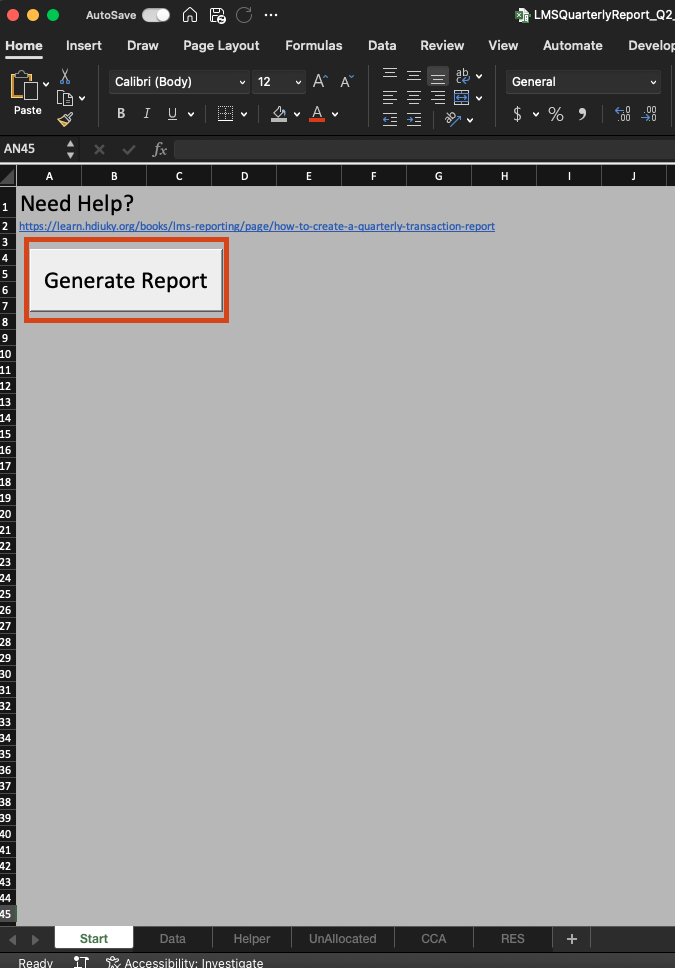
- Select the "Start" sheet from the bottom navigation menu and then press the "Generate Report" button.
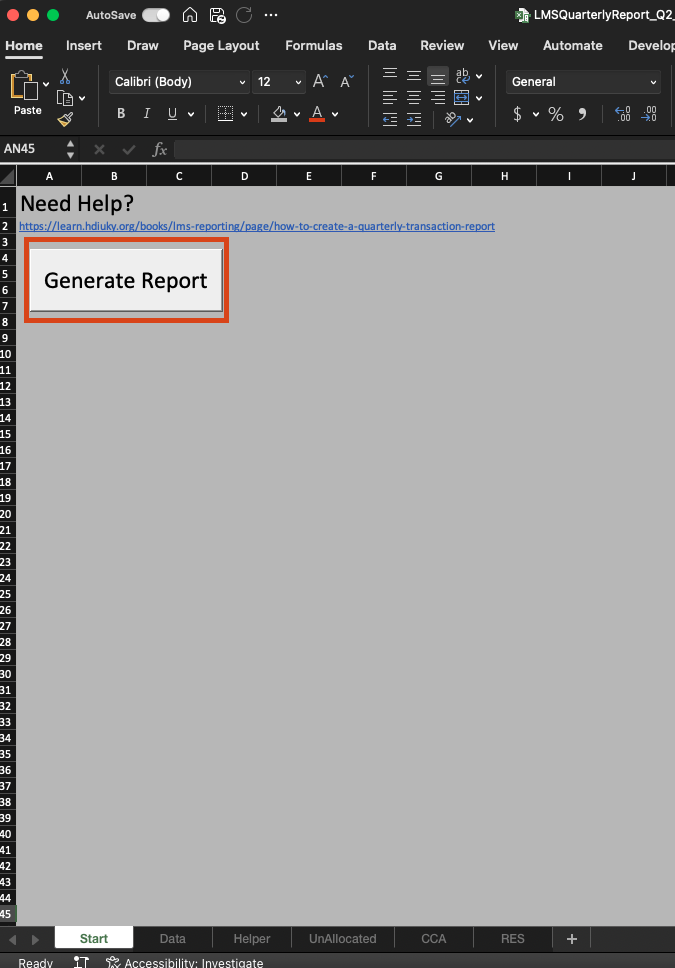
The report will take some time to generate, during this time it may appear Excel has become frozen or unresponsive. Please do not close the program. Continue to wait until the report is finished generating.