Skip to main content
How to Create a Quarterly Transaction Report
Download Source Data
- Login to the learning management system: HDI Learning
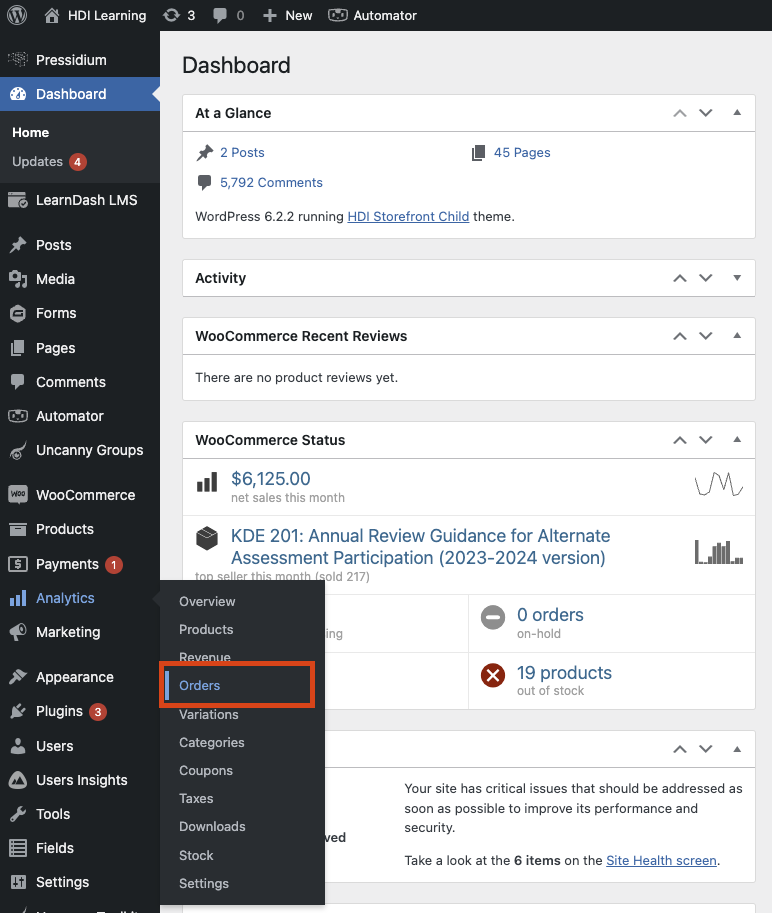
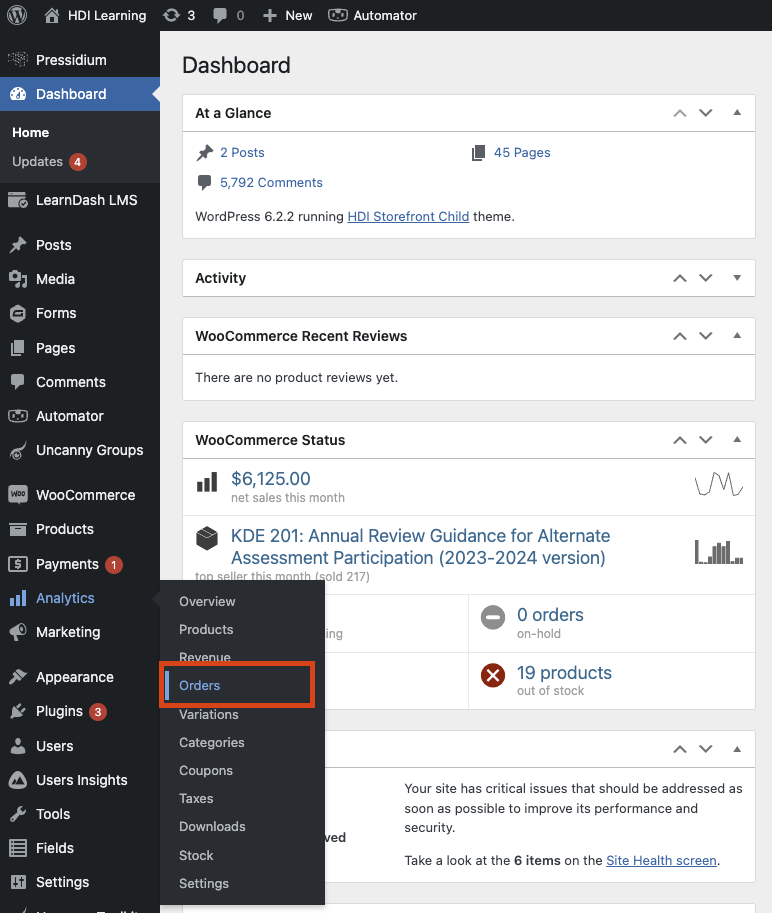
- From the administrative dashboard, hover over the "Analytics" tab from the left-hand menu.
- From the sub-menu that appears, select "Orders."
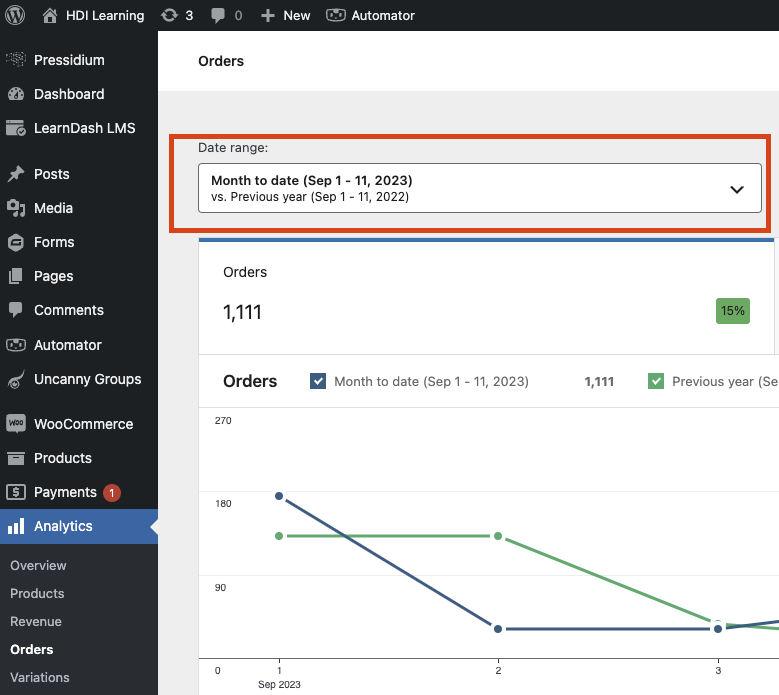
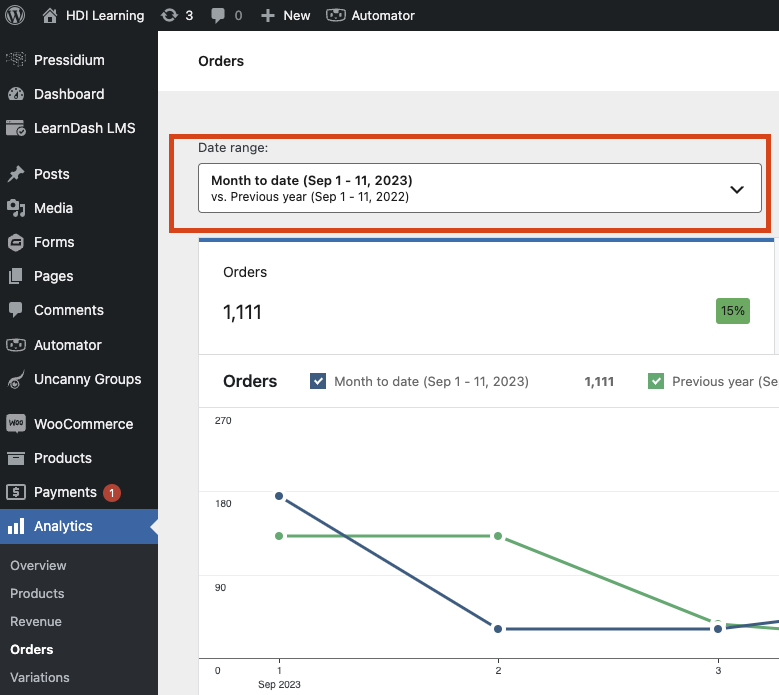
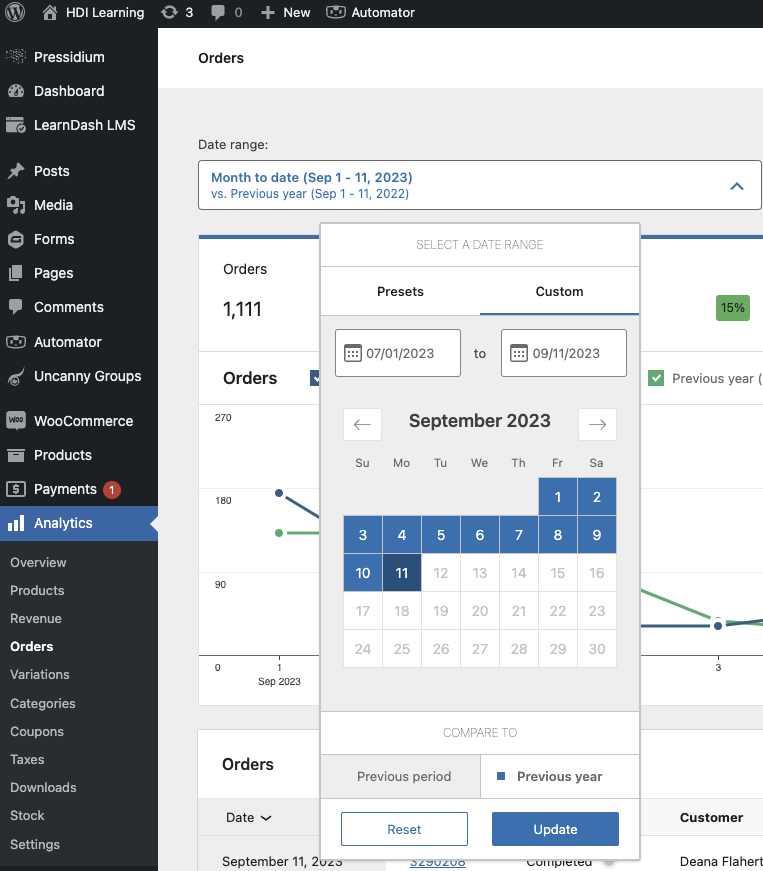
- Select the "Date Range" drop-down.
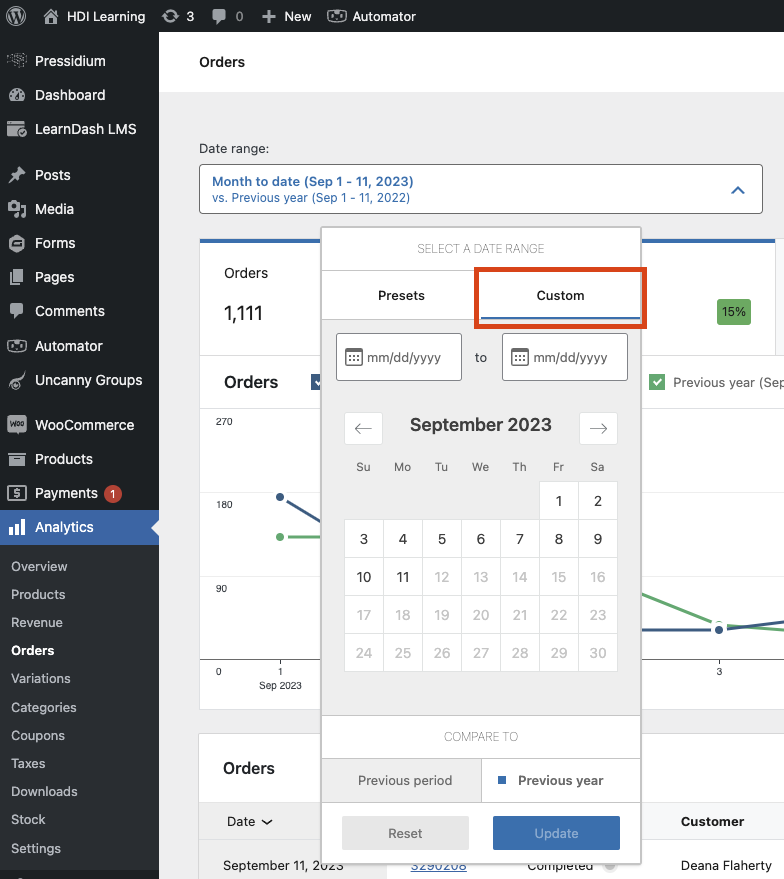
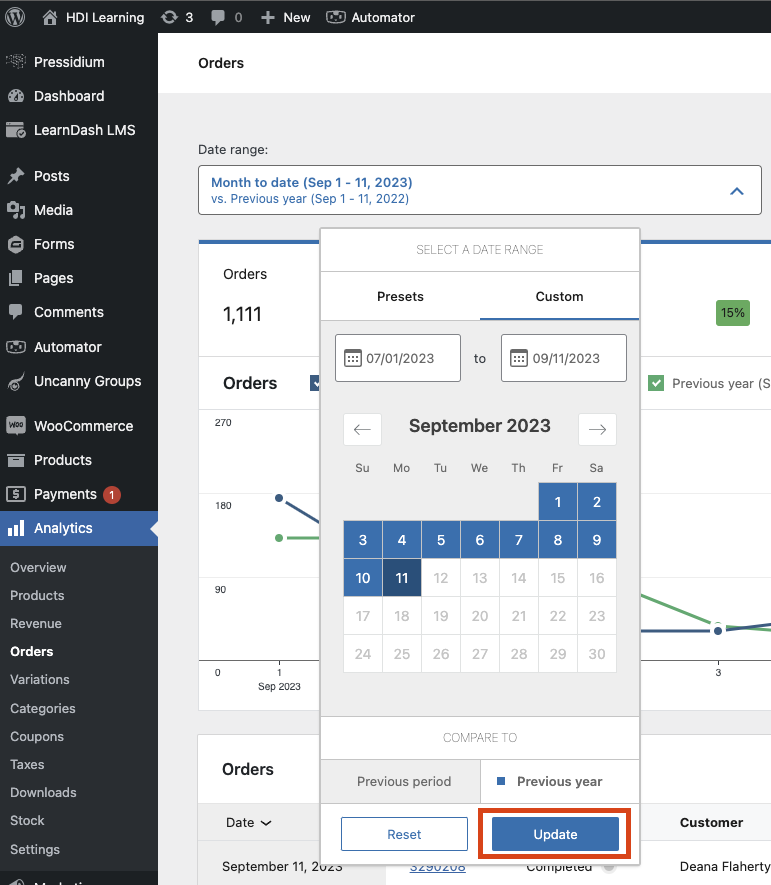
- Select the "Custom" tab.

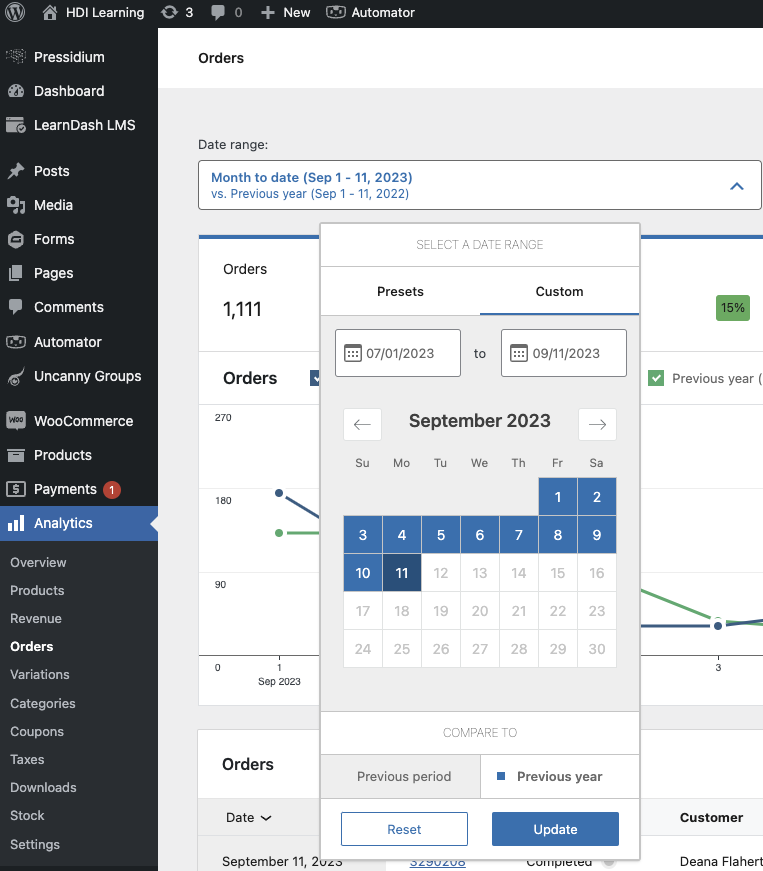
- Select the start date and end date of the date range you would like a report for.
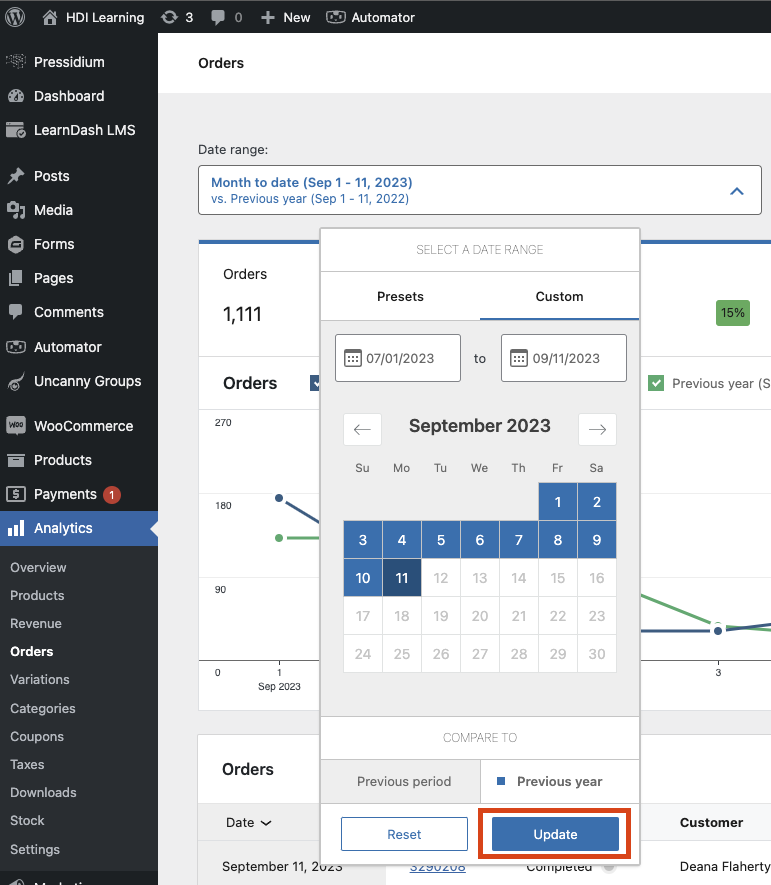
- Press the "Update" button to apply the date filter.
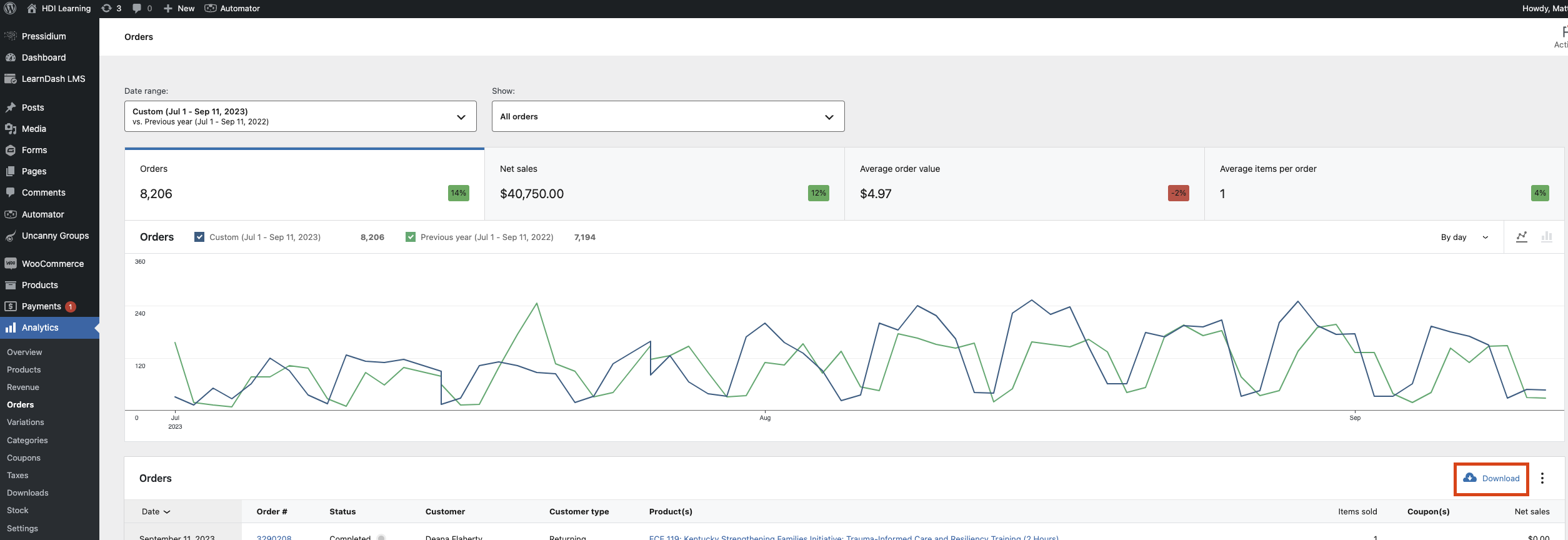
- Select the "Download" button from the far right of the screen.
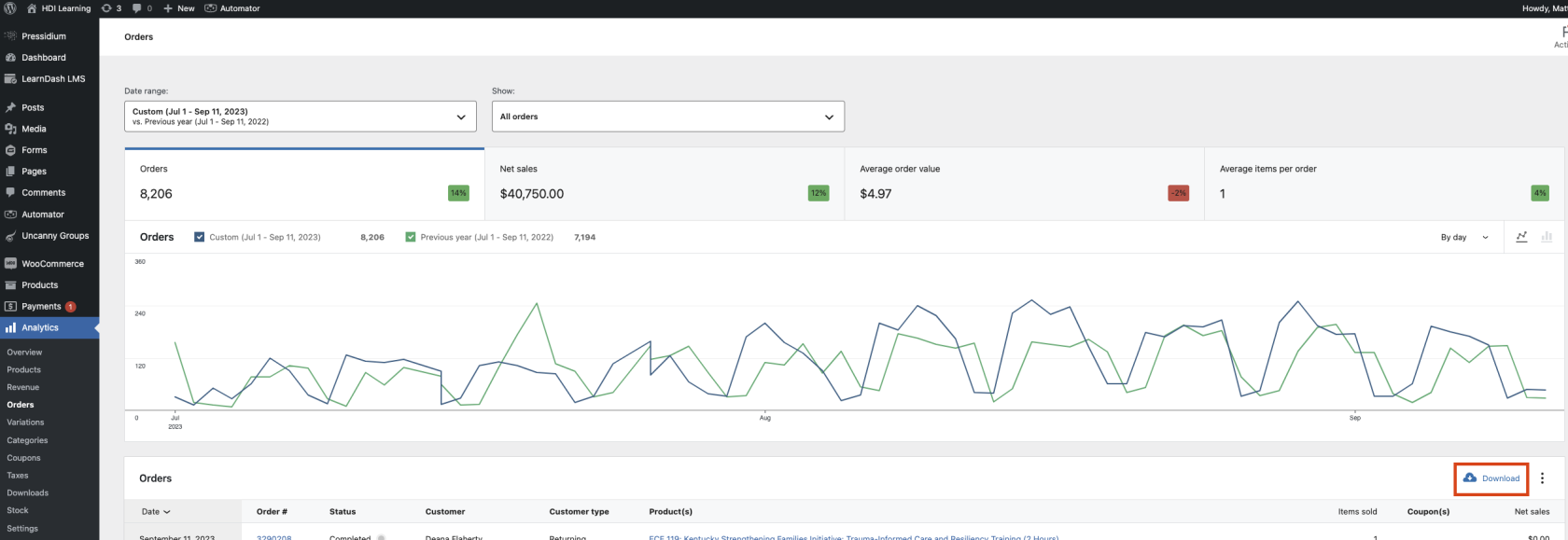
- The site will then send a report via email once it has been generated completed.
-