How to Create a Video for Embedding in SharePoint
Embedding Videos in a SharePoint Page
Purpose
Use this resource to learn how to create a video using your web cam and embed it in a SharePoint Intranet page for distribution.
- Create Your Video
- Embed in a SharePoint Page
Instructions
Video Creation
Record Your Video
- Open Document Library - navigate to the document library where your video will be stored.
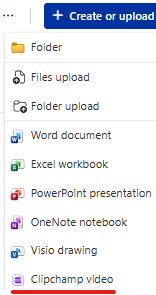
- Launch Video Editor - in the top right, click on "Create or Upload". Select "Clipchamp video"
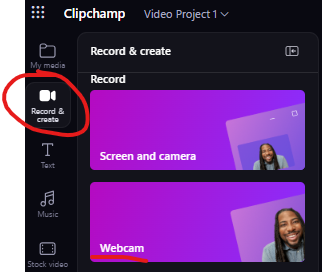
- Record with Webcam - on the left navigation pane, select "Record and create" to open and then select "Webcam".
- Set Backdrop - select on the backdrop button to blur or upload a background image.
- Start Recording - select start recording to begin.
- Don't stop if you stutter or don't like what you said. Just keep filming. During edit mode you can delete the cut before and after your desired content.
- Include long gaps before you start talking and after you end talking during your message. Look into the camera during these times. This will provide transition time before you clip out the beginning and end pieces to create a polished end result.
- Stop Video - when complete, click the stop video button
- Save and Edit - click the save and edit button to finalize your video.
Edit Your Video
- Trim Off Ends - play your video and pause where you want to trip. Then click the scissors icon to make a section cut.
- Alternately, use the slider to move directly to the section you want to cut and lick on the scissor icon.
- Delete Video Sections - select on the section to remove and click the Delete key on your keyboard.
- Do the same for the beginning and end sections.
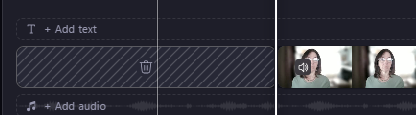
- Delete Gaps - delete the gap that now remains in the section by hovering over it and clicking on the trash can icon.
- Export Video
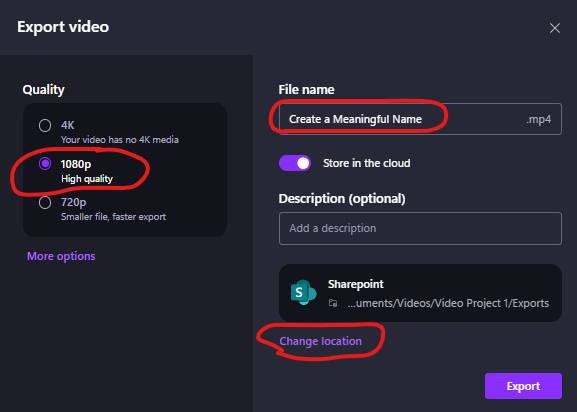
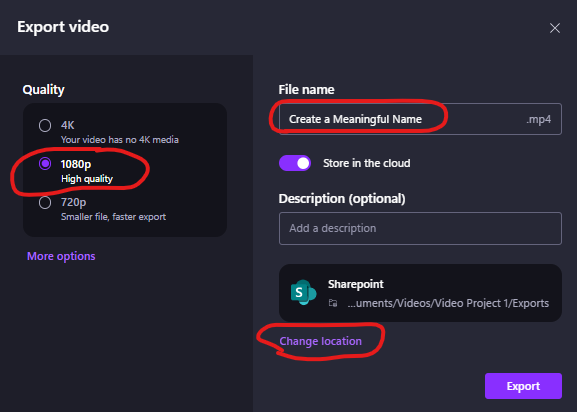
- Create a meaningful name - the name is seen on the SharePoint page
- Quality = 1080p
- Save to the SharePoint > Document Library > Videos folder where the video will be embedded on the page.
Embed in SharePoint
- Embed Video - on your SharePoint page, add "Video"
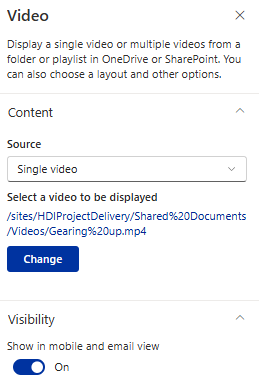
- Choose Video - navigate to the Document Library > Videos folder and select your video.
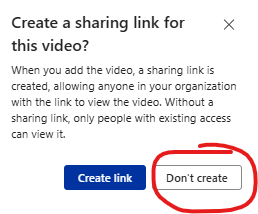
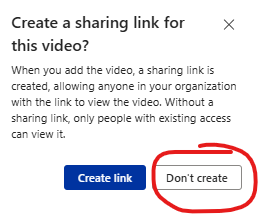
- Don't create a sharing link so that the video is only viewable by HDI employees
- Visibility - ensure Show in mobile and email view is turned on.